

Most of us have opened the list of vulnerable applications in Microsoft Intune at some point, picked a few to patch, and felt pretty good about it… until you reach an app that isn’t installed on every device. You don’t want Google Chrome landing on a machine that’s never had it, but Intune doesn’t give you a clean way to update only existing installations. Which leaves you with two options… and I’m not a big fan of either!
You can add devices to a static group by hand and keep checking for new ones that start using the software, but that doesn’t scale, and as IT admins with limited time, it’s not something we want to handle manually. Or you can put a requirement script on Win32 apps, which means every device has to evaluate it for every application it’s in scope for, and you now have one more script to maintain per application. Entra ID dynamic groups would be the obvious fix if they could target devices based on installed apps, but they can’t.
In this blog, I’ll show you how radar tracking in Robopack gets around this by using the data Intune is already collecting for you.
Requirement script
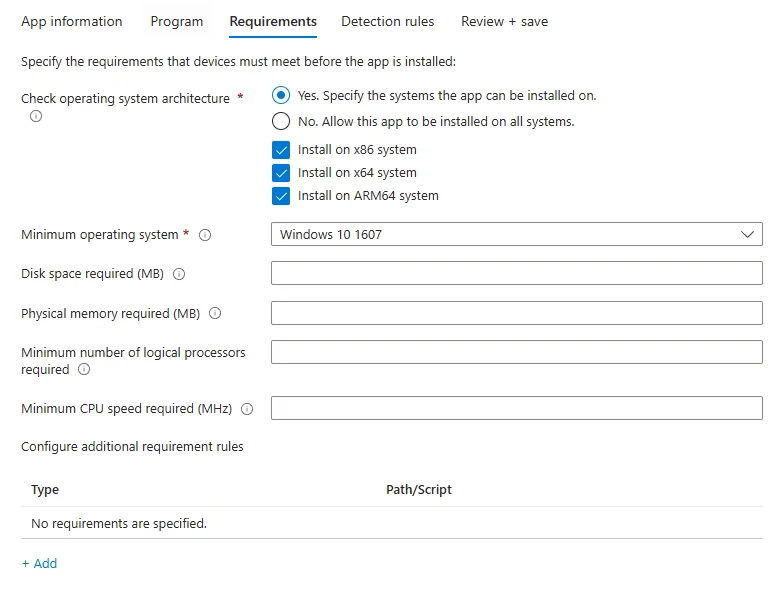
For reference, here is how a requirement script is configured in Intune. On a Win32 app, you can configure several kinds of requirements, such as required disk space, minimum OS version, and custom requirement rules based on a file, the registry or a script.
Radar tracking
Radar tracking is available on patch groups and patch flows. It creates groups based on the devices that have an older version of the app, so the application is only deployed to devices that already have it installed. Instead of using a requirement script to check whether an application is installed, Robopack uses data Intune already collects in the Discovered apps report.
Discovered apps
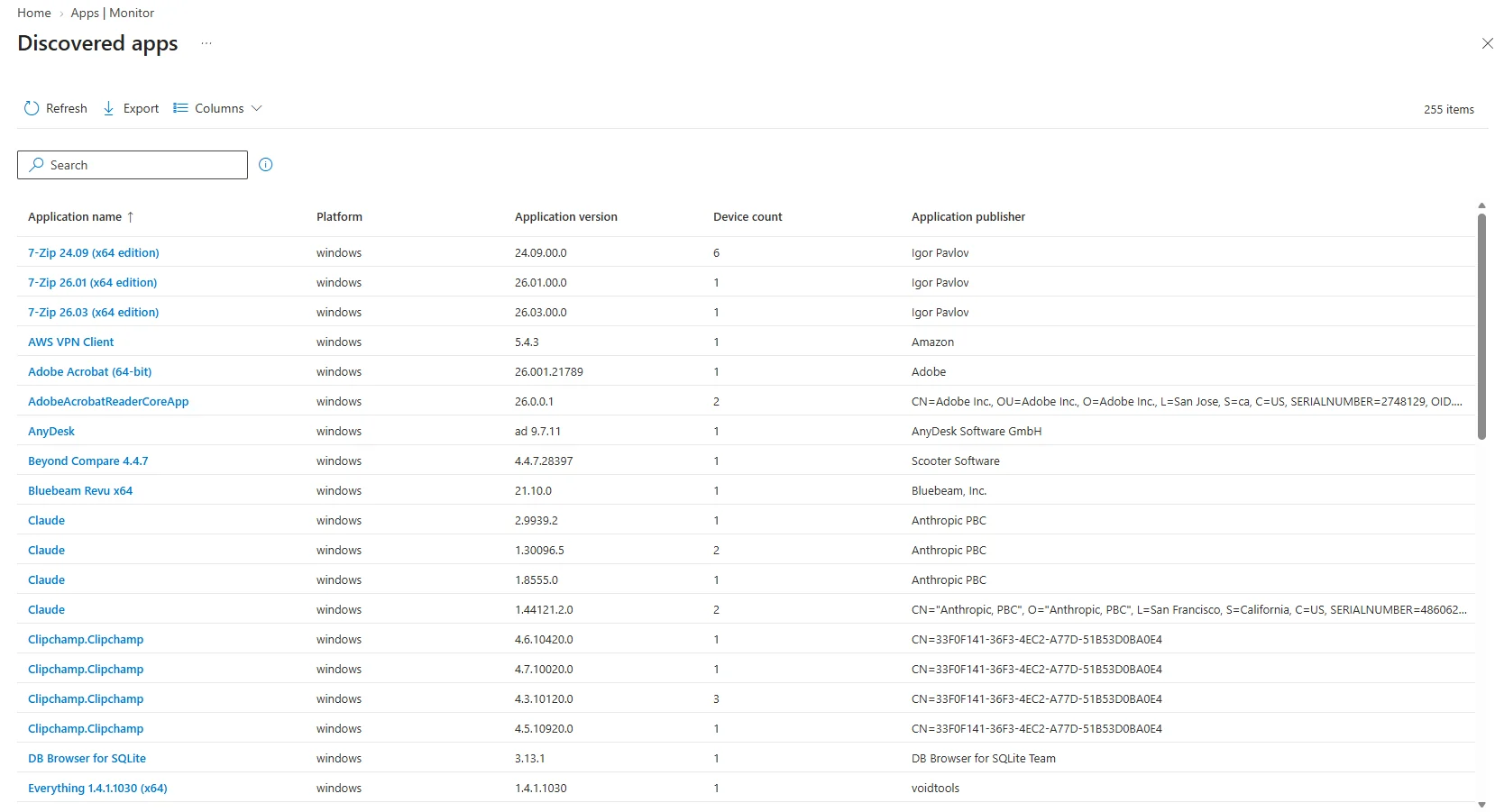
In the Intune admin center, go to Apps > Monitor > Discovered Apps. This is where you’ll see the applications Intune has detected on your devices (as shown below). Robopack retrieves this information and updates the radar tracking data every 24 hours.
Setting up radar tracking to update only existing installations
Radar tracking can be enabled on a patch flow or on a patch group. In this example, we’ll create a patch group that uses radar tracking to update only existing installations, so the application isn’t pushed to devices that don’t already have it.
- Create a new patch group. For the purpose of this blog, I’ll name it “Update Only” and give it a description.
- A patch group needs at least one group assignment before the radar tracking options appear for your tenant. On wave 1, I will assign an empty group from Entra ID as available.
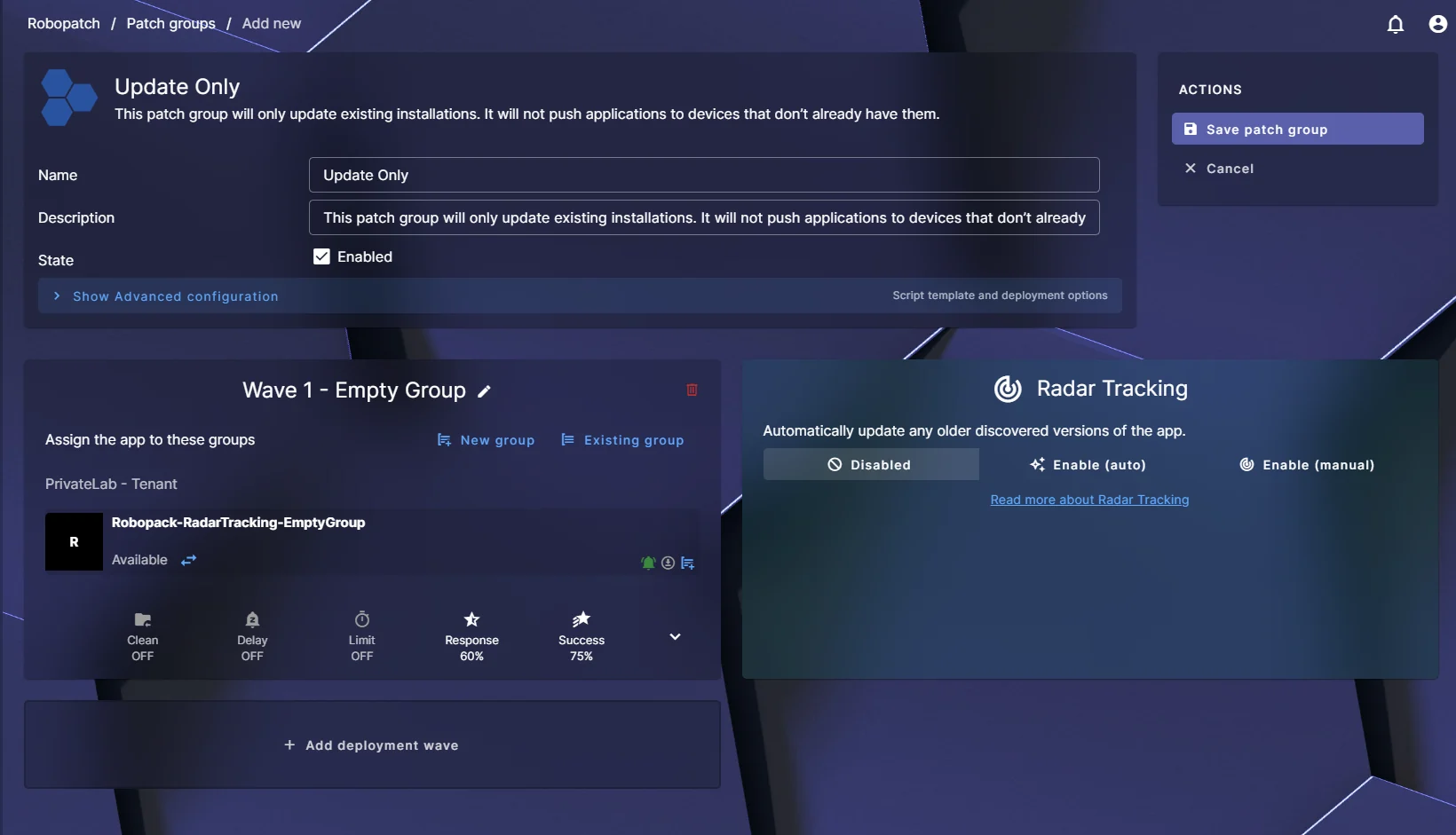
- Once the group has been assigned, you can enable radar tracking using either the auto or manual option. The auto option follows Robopack’s default naming, while the manual option lets you specify your own naming standard. I will select Enable (auto) and enable it for my tenant.
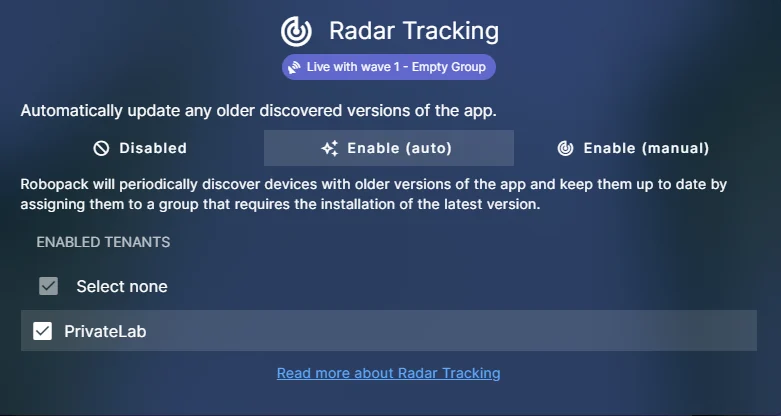
Note: The radar tracking group is always assigned to the last wave. This patch group only has one wave, so that’s wave 1.
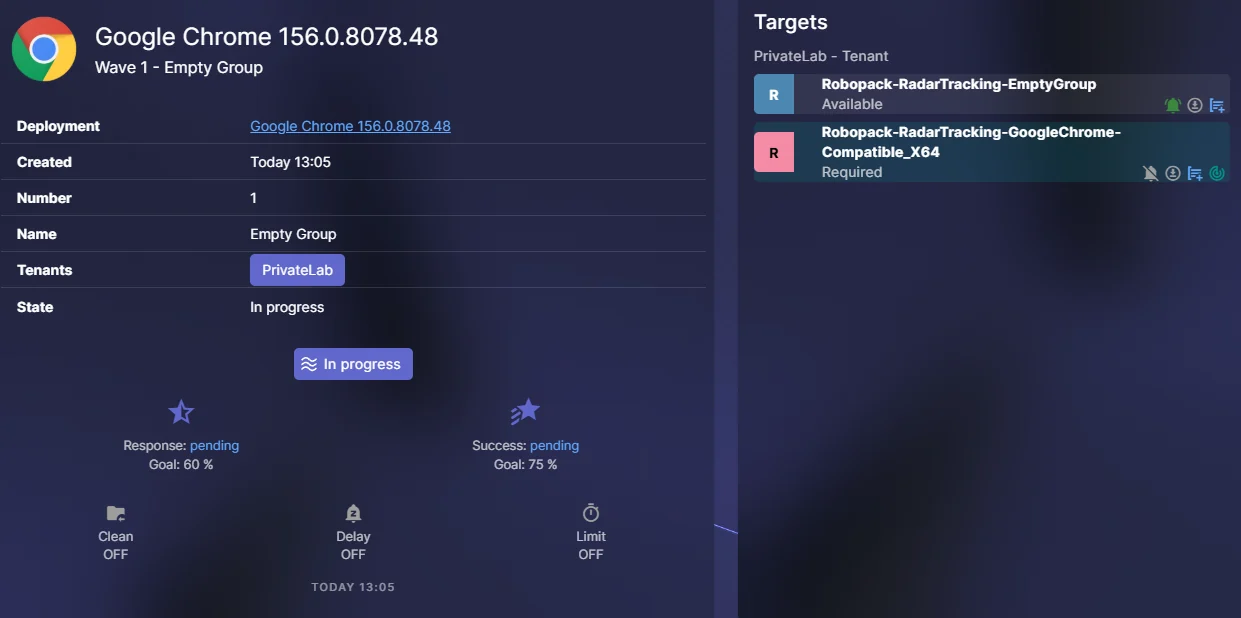
- Create the patch group and add the applications you want to update without pushing them to all devices. I have added Google Chrome, so wave 1 now has two assignments:
Robopack-RadarTracking-EmptyGroupis the empty Entra ID group from step 2, assigned as available.- The radar tracking group,
Robopack-RadarTracking-GoogleChrome-*, is assigned as required. Robopack populates it automatically with devices that have an older version of Chrome installed.
Try it yourself
With Robopack’s radar tracking, you can keep applications like Google Chrome up to date on the devices that already have them installed, without maintaining manual groups or requirement scripts. Once the patch group is set up, you can keep adding other apps that only some of your devices use.
If you want to try it on your own tenant, start a free trial. Or, if you’d rather test it without touching your production environment first, try the Robopack sandbox.
Happy patching!



Leave a comment