

A more theoretical blog post from me for a change, about how to target your application updates. Usually, I’d go digging into the gloomy depths of Graph, but that wouldn’t make any sense here, so instead we can drift into the higher levels of Intune management. This is quite a contentious subject and there really is no right or wrong answer, so this blog is based purely on my opinions and (sometimes bitter) experience.
I imagine by now you have a pretty solid setup for Windows updates: a pilot, preview, broad and maybe a VIP ring for those who simply cannot reboot their machines every month (we have all dealt with them). This is tried and tested because, let’s be honest, Patch Tuesday has been a thing for a very long time, whether you were managing it with WSUS, SCCM, GPO or whatever else you wanted to use. But what about your apps? Those old enough to remember the days of floppy disk and CD-ROM installs probably have a rough idea; after all, you used to run around and manually install apps, and while it was never documented, you had an order of who you started with.
Not all apps are created equal
These days, though, updates are getting a whole lot more frequent (and as someone who has spent the last many months building our own internal app catalog, I have definitely noticed it). AI is only going to make things worse with everyone trying to find exploits (for money, fame, who knows). If we follow the Windows Update approach, by the time you hit the broad ring, there will be another update outstanding. Do you skip the old tested one? Do you accept the risk?
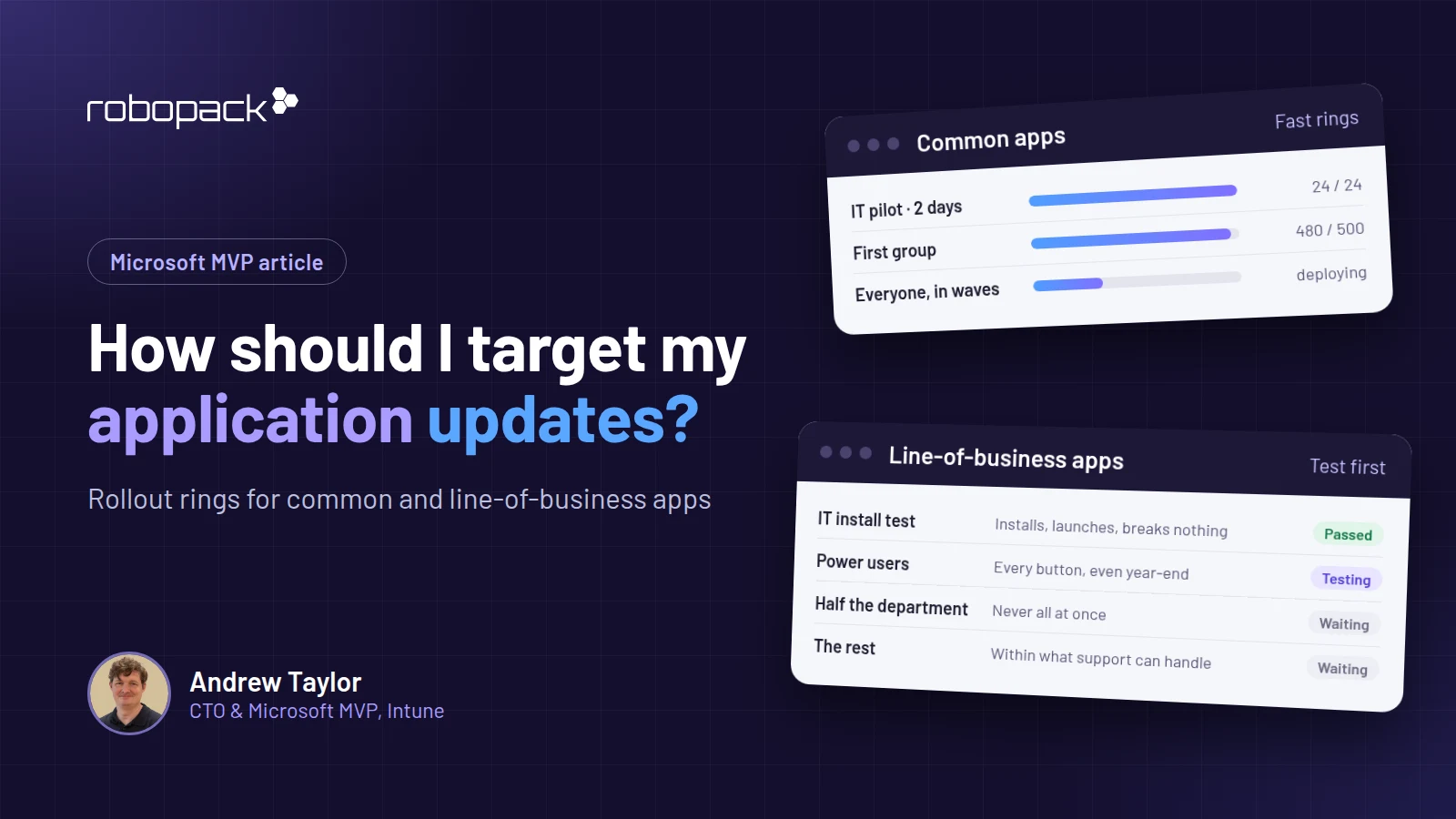
There need to be two different approaches for your applications, depending on the type of application. To make things easier, I’ll call them Line of Business apps (LOB, nothing to do with LOB in Intune) and Common apps. Let’s start with the common apps: your browsers, Notepad++ and 7-Zip – the standard apps you find on 90%+ of your estate that are likely to be upgraded fairly regularly (it feels like weekly in some cases).
Common apps need a faster cadence
If we went for the Windows Update approach (keep in mind you have a whole month between these), some of your estate will never see the updates, or worse still, they’ll be stuck on an older version. So, we need something quicker – although we still want to keep a deployment ring approach. You really don’t want a faulty application update suddenly causing a BSOD across your entire estate, or you’re in for a really bad week (looking at you, Symantec!).
I would always suggest starting with a very small group, ideally IT (admin rights make it easier to remove and re-install), and if it’s something like Google Chrome, a device with a secondary browser in case things do go wrong. In an ideal world, it would be a whole separate test device, but getting someone to use multiple devices is optimistic; this must be real-world usable, or it all falls apart.
Once you are happy that these have worked without any “the service desk is going to hate me in the morning” issues, you can then look at deploying more widely. The speed here depends on how often the application updates, and this information is public, so you can get a feel for rough schedules, and you can always tweak if needed.
Let’s work on an app which updates every two weeks. Give yourselves two days for the initial testing (I would consider making the app available to the beta testers so they can install and test more quickly). Follow up with the first group quickly, mainly because you never know what weird setups IT could potentially have. After that, push as quickly as possible, but try and keep it manageable so if something does happen, your support team isn’t overwhelmed; deploying to 10,000 devices in one go won’t get you any Christmas gifts! Obviously, if it’s a massive zero-day, your playbook goes straight out the window; you always need to be flexible with these things.
Make sure you keep an eye on reporting as well; 100% success is pretty unlikely, but if the failure rate suddenly jumps, you might have an issue which you’ll want to catch as quickly as possible. If your app deployment tool has a Pause button, this is where you need to press it rapidly! If app deployment is a large part of your job, get one of these and use a macro to pause deployments:

Why line of business apps need more testing
That’s our “common” apps mostly covered, and, if we are honest, these will cause the odd complaint but are unlikely to cause any significant business impact unless it’s gone really wrong and you are rapidly putting together your three envelopes. Now, though, we are moving on to the secret killers: the line of business apps. These could be absolutely anything from a finance package right down to a niche application used by one small department in a hospital. The thing these all have in common is that they’re critical to business operations and downtime really isn’t an option (I imagine you are probably also expected to be an expert on exactly how to use them as well, but we will save that for a future rant!).
These applications need a whole different approach; the stakes are significantly higher, and the testing is a lot more in-depth. Any of you can test Chrome or 7-Zip (does it compress and extract? Tick, done), but while you may have a login for one of these LOB apps, chances are you don’t really know how to use it.
That isn’t to say we shouldn’t start with the same IT pilot group, because we absolutely should. We really don’t want to be pushing apps to users which immediately crash; that isn’t a good look for the IT department, and we really want to be at the “I don’t know why we have you, everything just works” side of the scale rather than the “I don’t know why we bother with you, it’s all broken” side.
This initial test is literally to make sure the application installs correctly (hopefully silently), doesn’t crash when launched and doesn’t break any other applications. Even if you are lucky (or unlucky) enough to have a login, this is about as good as your testing can get.
Also, please make sure you have a working roll-back option at this point. If your next group finds an issue and it’s going to take days/weeks/months to get a fix from the vendor, they still need to be able to work in that time.
Look after your power users
Next is where we need your “Power Users”, not the ones in that Computer Group, but those users who you go to when you need help with a particular application. Every department has one and I’m sure you can name all of them right now. These people are your angels when it comes to application updates, so make sure you treat them well. Prioritize their tickets, bribe them with chocolate… whatever it takes! Once you have confirmed the application installs and launches, you need someone who is going to test, firstly, that it does what it needs to do to keep the business running, but ideally also to hammer every possible button so you can find the bugs and “features” before the tickets start flooding in.
These users need to be in the first group after the IT test, and hopefully the apps don’t update too frequently so you can give them plenty of time to actually confirm it all works OK – even that button which they only click at year-end. You want to find out now, not when it’s a critical issue.
Rolling out application updates to everyone else
Once your power users are happy the update is working correctly, you can move on to the next wave. For apps used in a single department, the instinct at this point is just to YOLO it and move on with your life, but please don’t do this. Just imagine for a second, your power user had or didn’t have a particular application, keyboard, mouse – it could be anything which doesn’t work with the application, but everyone else in the department does. Congratulations, you’ve taken 99% of the department offline, and now your manager is shouting at you, the users are shouting at you and the power user who is now the only person doing the work of 10 is someone you need to avoid for the next few weeks. Please, and I cannot say this enough, do not deploy to a whole department in one go; at least split it in half.
For apps with a larger user base, follow the same process as the common apps: never deploy to more than your support team could handle unless it really is critical that the app is updated yesterday.
A few things that will save you later
That’s targeting of apps covered, but there are a few other things that also need mentioning here:
- NEVER deploy anything to the entire IT department in one go: app, Windows update, driver, anything. If something goes wrong, you have crippled the only people who can fix it.
- Turn off auto updates on apps. Leave those on and you lose the whole point of this post; they will update whenever they want (and that’s without even mentioning the whole Notepad++ thing).
- Test your uninstalls! We’ve all done it: throw anything into the uninstall box, we are trying to get it installed quickly, that’s a problem for future me. Well, future you really doesn’t want to find out that doesn’t work when they have a CVE, license audit, message from the CEO or whatever reason to remove the application everywhere right NOW. Finding the uninstall string, updating the app, and praying the devices notice in the middle of being shouted at is not fun.
Let a tool do the heavy lifting
It’s not all doom and gloom though, Robopack (or some other not so good options are also available) can do a lot of this hard work for you. So, if you are not using it already, I would strongly suggest giving it a try – we have a no-commitment, free sandbox available to explore, with a fully populated demo tenant embedded, so you can see how packaging, patching, and rollout waves work end to end (no test tenant or Intune lab needed either, by the way). Try the free sandbox here.
Stay tuned for more old-man rants 🙂




Leave a comment