

Introduction
Installing applications and understanding how applications install is a key component of endpoint management. No one wants to get the dreaded call from the C-suite that the critical application the CEO needs isn’t going to load on their machine right before a presentation to investors. To prevent that moment of panic, understanding how the software gets to the machine, installs, and is available to users helps prevent this potential résumé-generating event.
There are a few different application types you can manage with Intune:
- Microsoft Store apps
- Windows (Win32) apps
- Microsoft 365 apps
- Line-of-business apps
For the detailed list, see App Type Details. For the sake of this blog post, we’re going to focus on Intune Win32 App Deployment. As recommended by Microsoft, whenever possible, use Win32 (Windows) app types, especially if you have a multi-file application installer.
Prerequisites
Before jumping in, there are some prerequisite steps from the Microsoft docs that we’re going to assume you’ve covered, including the creation of the Win32 app which produces the .intunewin file that will be uploaded to Intune. If you’re not feeling confident with the following process flow, we recommend that you check that resource out first and we’ll see you when you come back to this post:
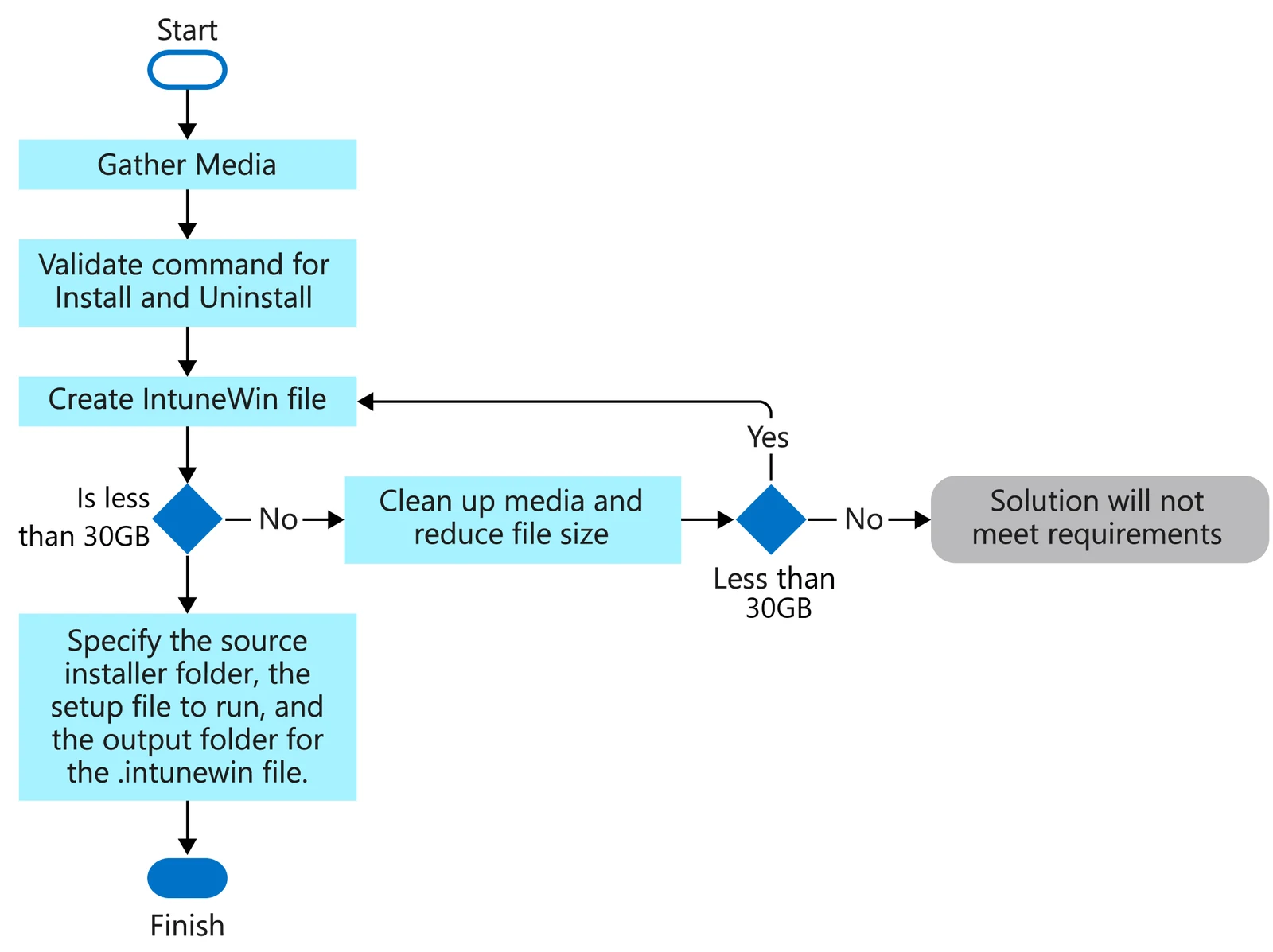
Win32 App Process Flow
I find process flow visuals to be incredibly helpful. This is the process flow for manually adding Win32 applications to Intune.
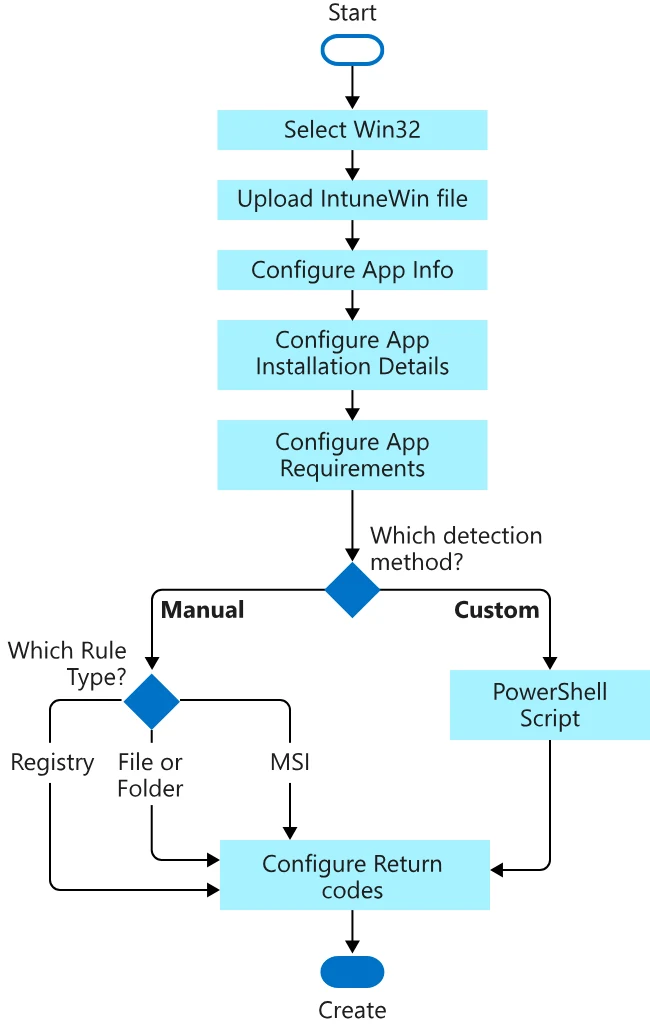
Configure App Info
After you’ve created the .intunewin file, you’ll configure the application information.
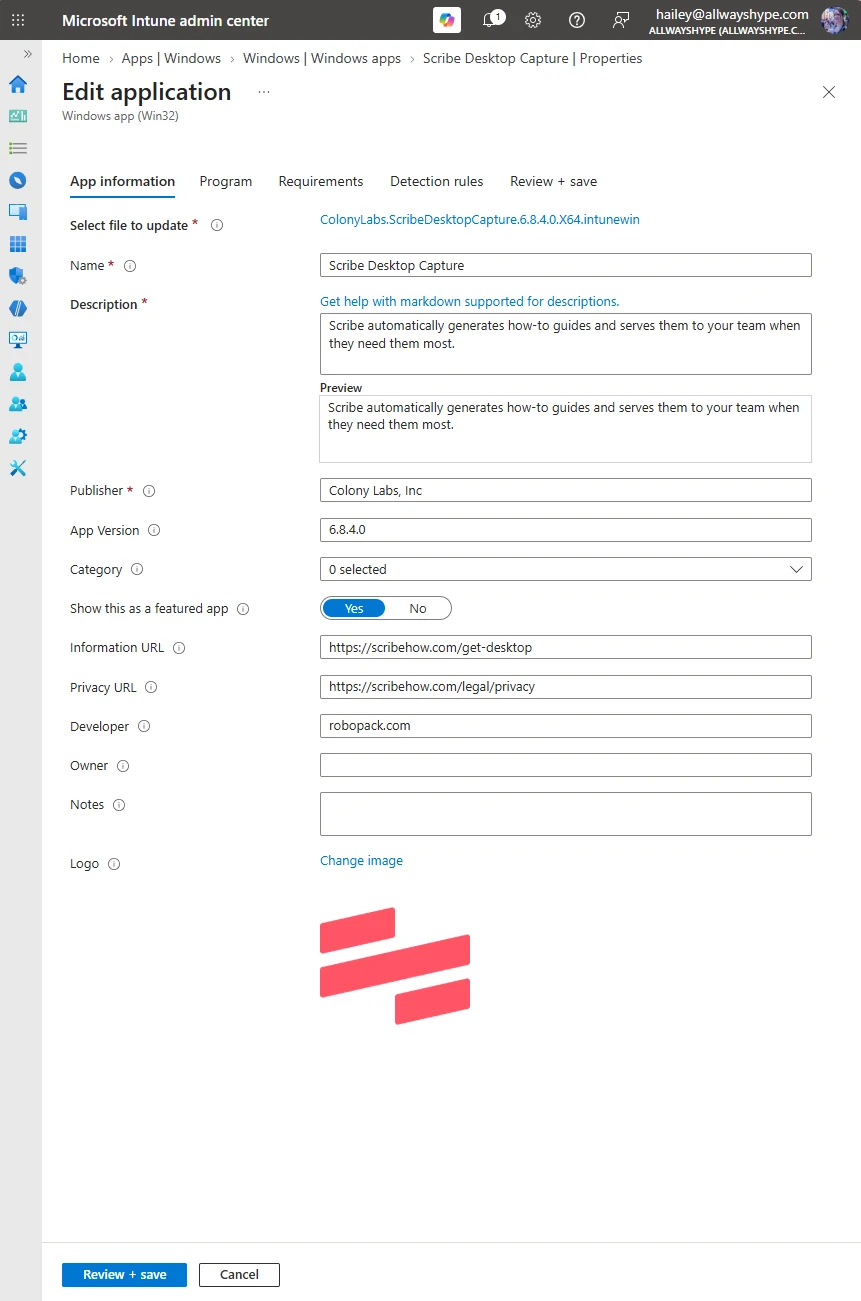
Configure App Installation Details
Then you’ll add the app’s install and uninstall details.
When uploading a Win32 application to Intune, you’ll see that there are default return codes that were created during app creation, but you can also add additional return codes or change the existing ones, specifying any of the following:
- Success
- Retry
- Soft reboot
- Hard reboot
- Failed
Mapping these return codes properly will affect not only the reporting of the status of application deployment in your environment, but will also impact the application’s behavior for your end users.
For this example, since I’ve packaged the application using Robopack, which utilizes the PowerShell App Deployment Toolkit (PSADT), the return codes are already captured in the PSADT installation script. PSADT also enables the use of custom script templates that handle welcome dialogs, application installation deferrals, installation progress, and more.
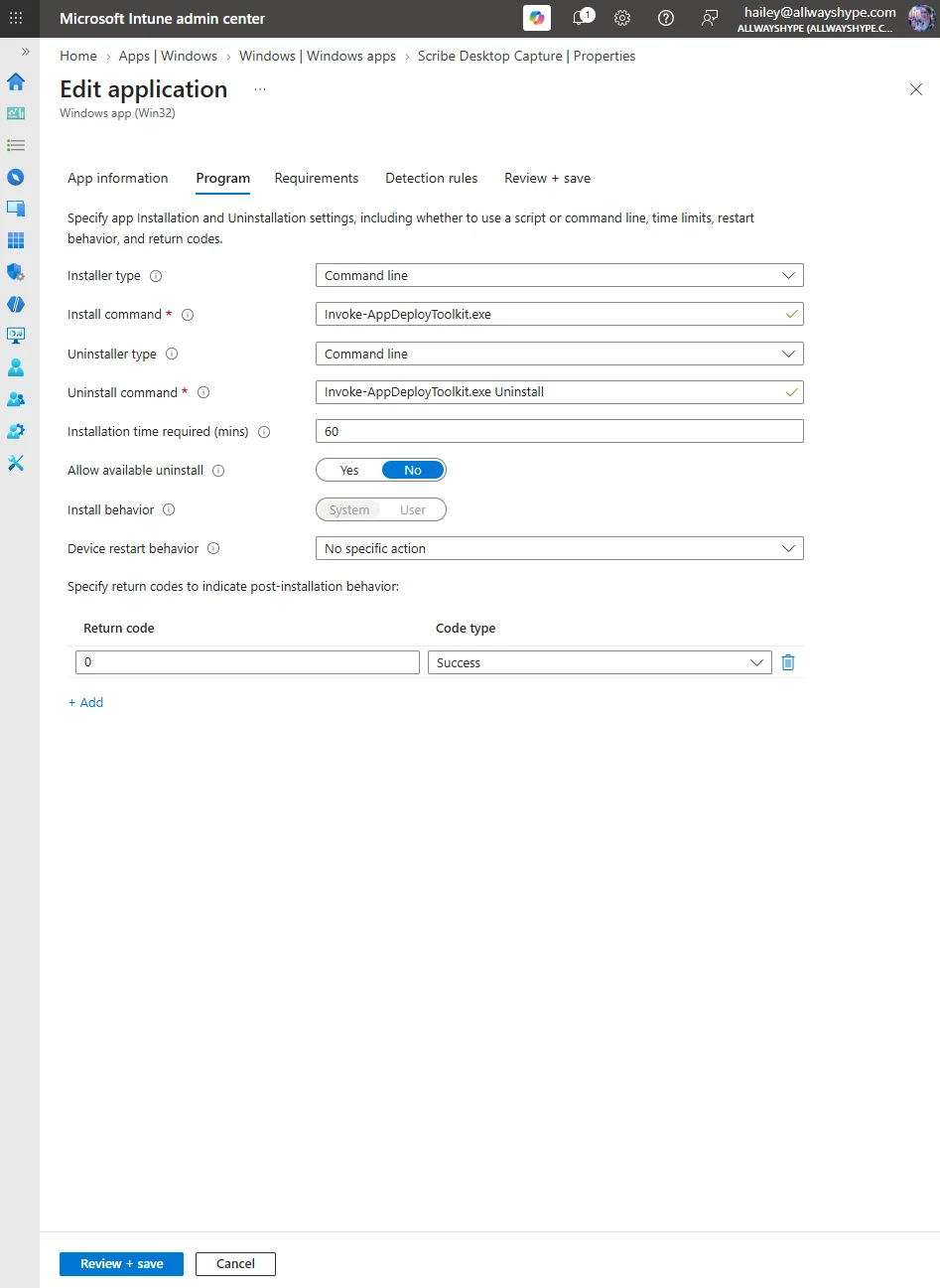
If you’re not sure about the silent install commands, a great free resource to check out is Silent Install HQ.
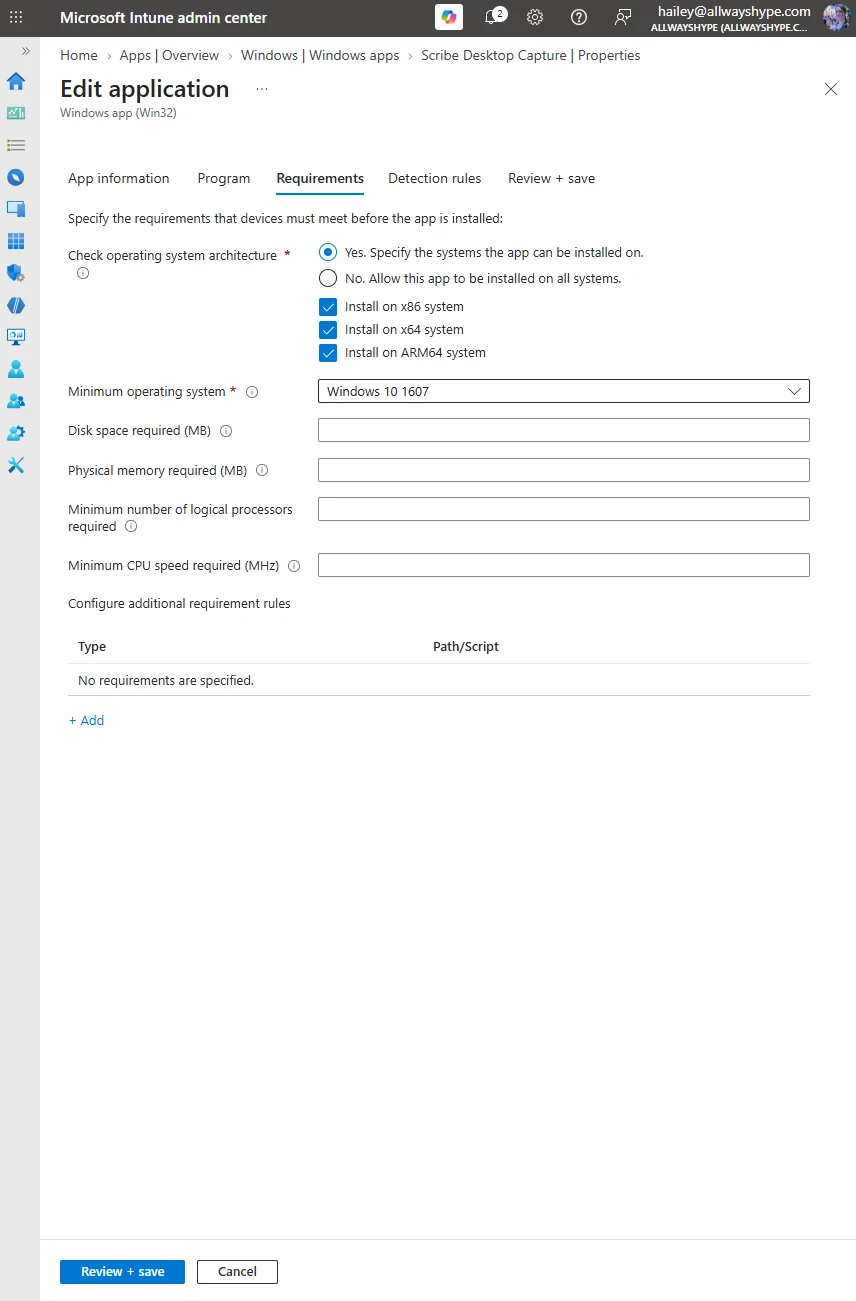
Configure App Requirements
Next, we’ll move on to the application requirements, where you can specify which platforms the application can be installed on. This is helpful for scenarios where specific application types are meant for certain platforms, specific operating systems, etc.
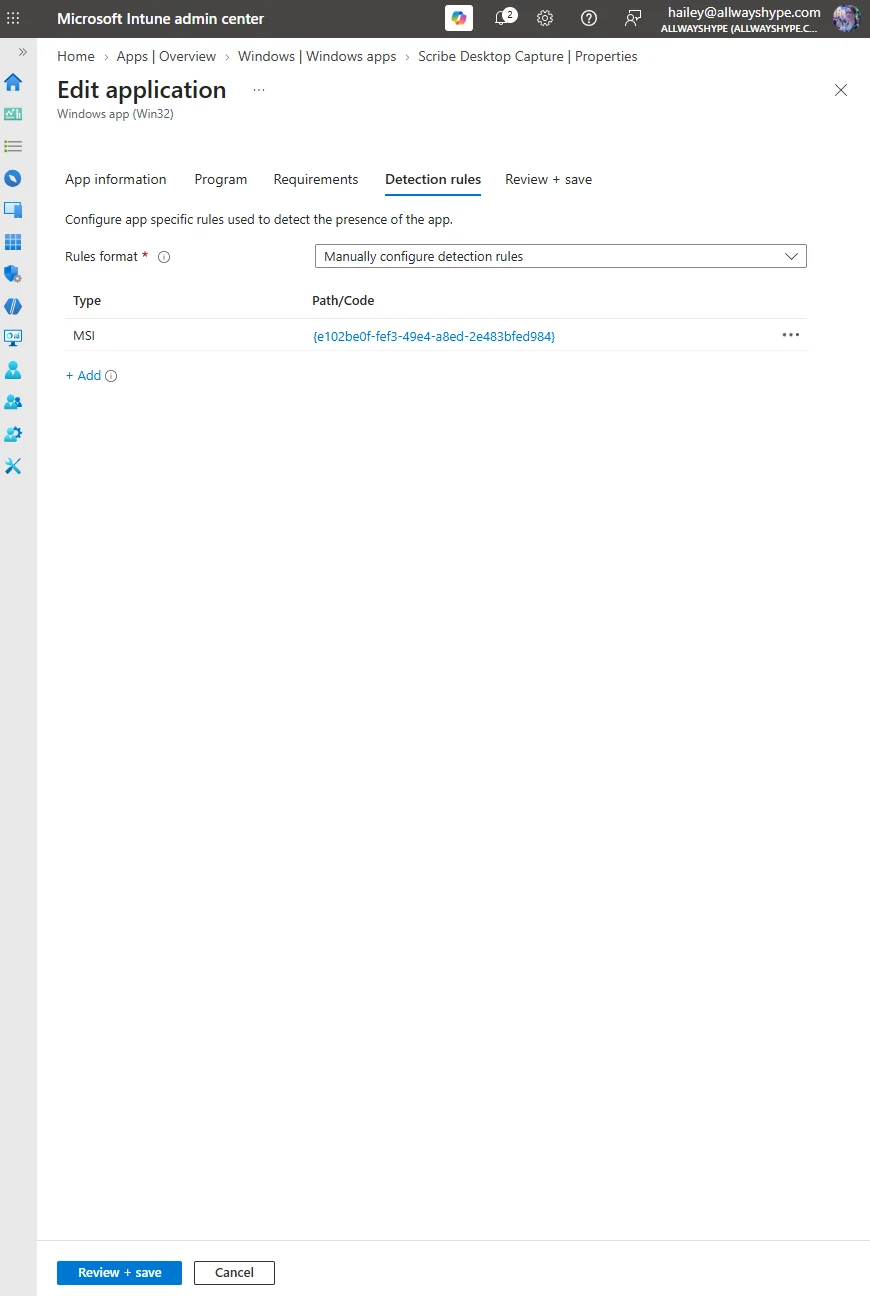
Detection Method – Manual
When determining the detection method, a commonly used option is using the MSI product code when the application is an MSI, which I’ll be using for this example.
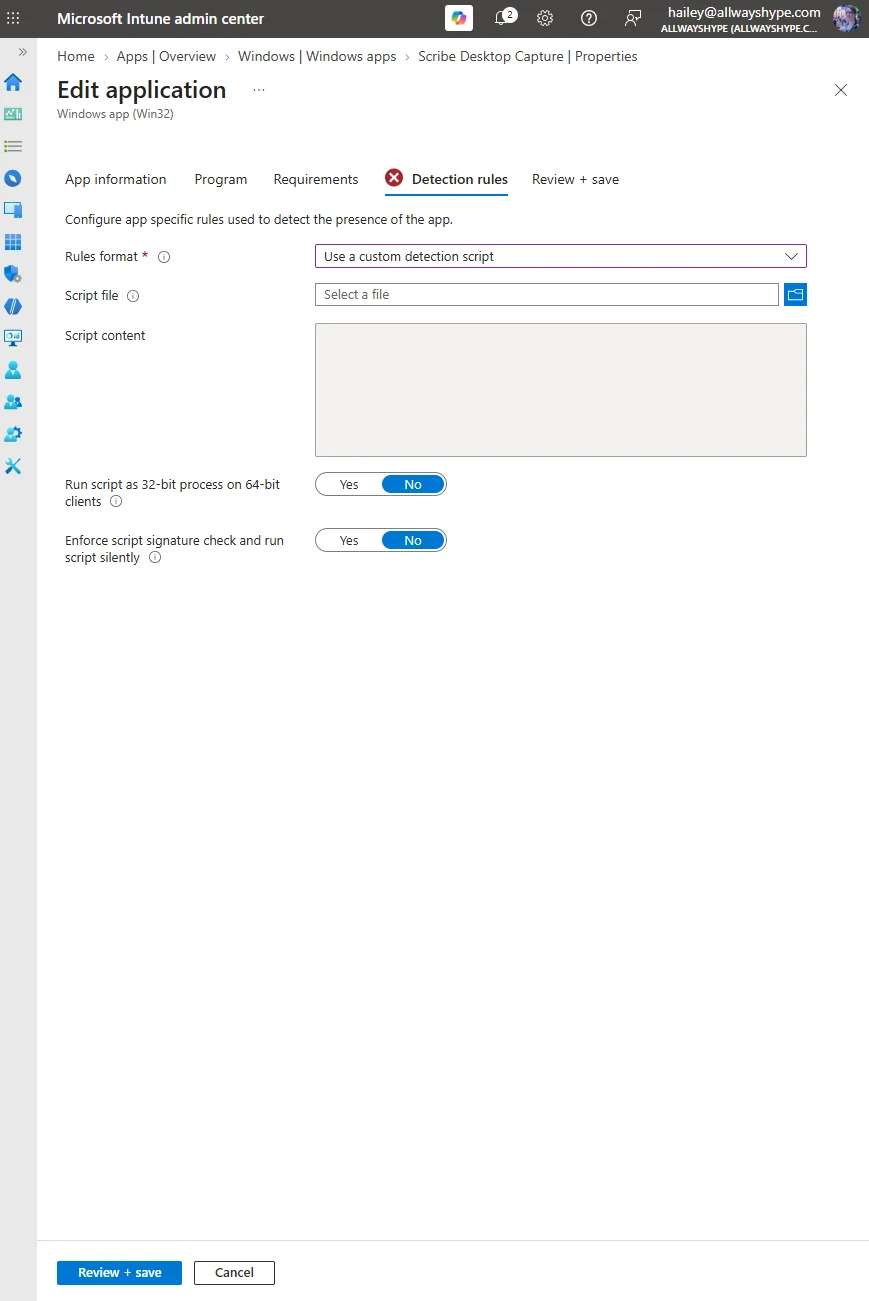
Detection Method – Custom
You also have the option to create detection rules with a script. If you choose to go this route, I would recommend that you confirm that the PowerShell script that you’re using is consistently performing as expected before uploading it as a detection script to Intune.
Application Details
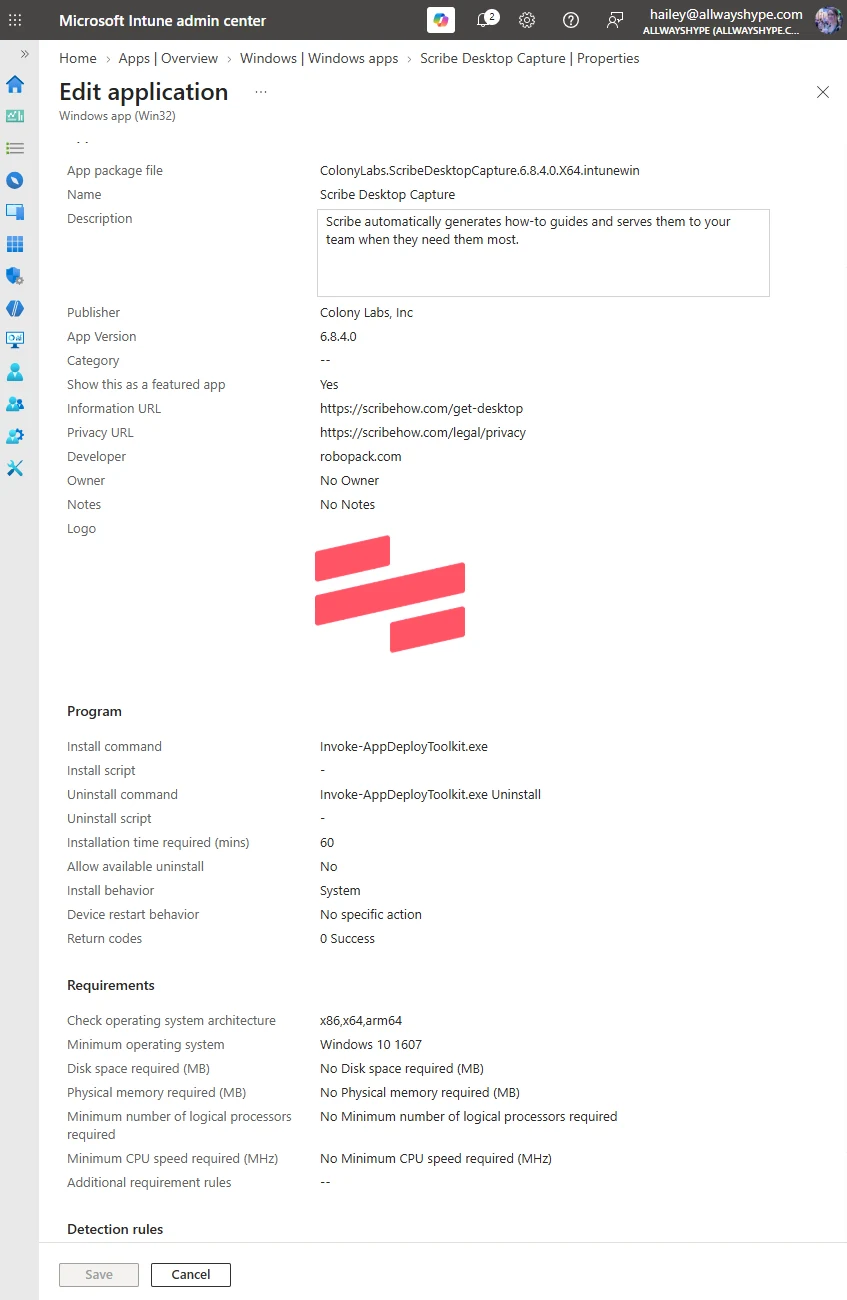
After all of the previous steps have been completed, you’ll see all of the settings that you’ve configured on this application details page. If everything looks as you’d expect, hit save and proceed to deploying the application to your designated groups.
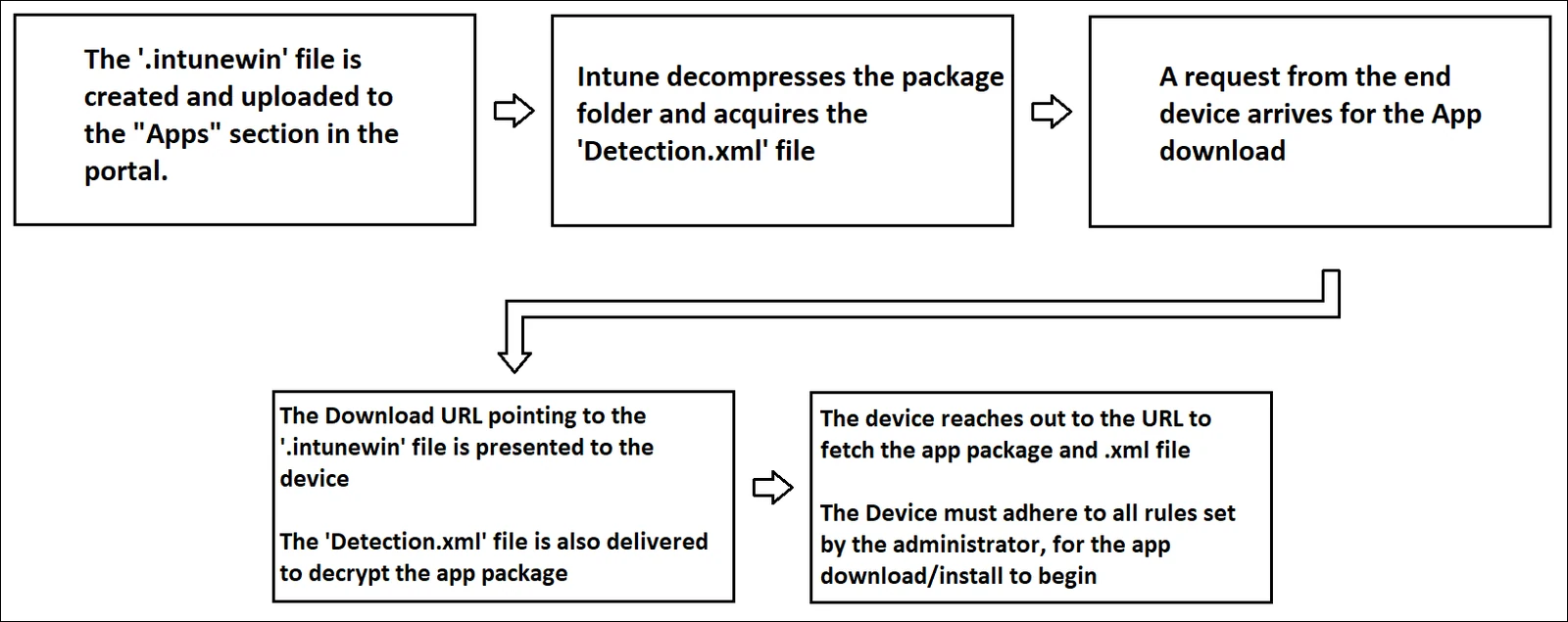
Client Application Installation Flow
Alright, now that we’ve gotten the prerequisites out of the way, probably the most important part of learning how application deployment works is understanding where the logs are and what they mean.
Again, let’s have a look at the process flow to see how a Win32 app is delivered to the client from Intune:
Let’s jump in and see what that looks like in the console.
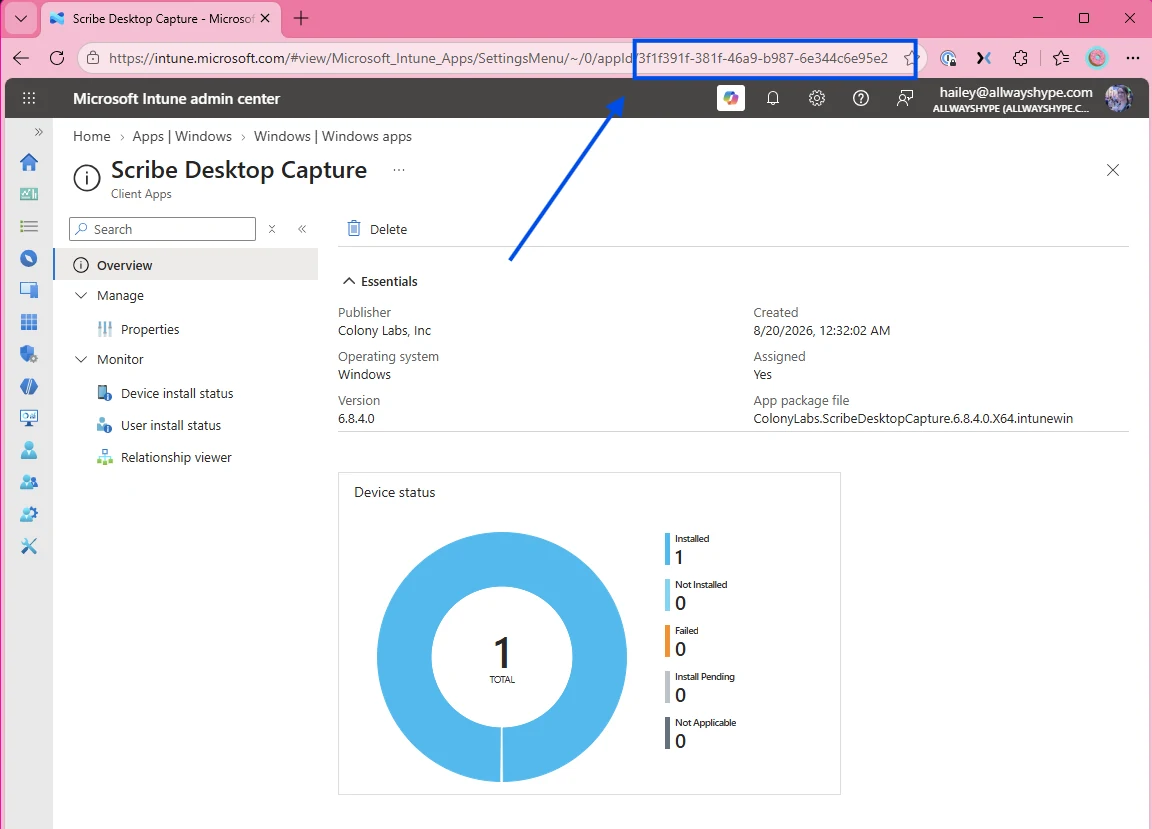
After you’ve uploaded the application, you’ll find that there’s a GUID for that application that you’ll use to track the installation. If you’re not sure what the GUID is, there’s an easy way to find it in the URL of the app.
Now that we have that GUID, we’re going to go check the logs in the Intune Management Extension folder:
C:\ProgramData\Microsoft\IntuneManagementExtension\LogsUse the AppWorkload.log to locate that application. We see that the reporting state of the application is being reported:
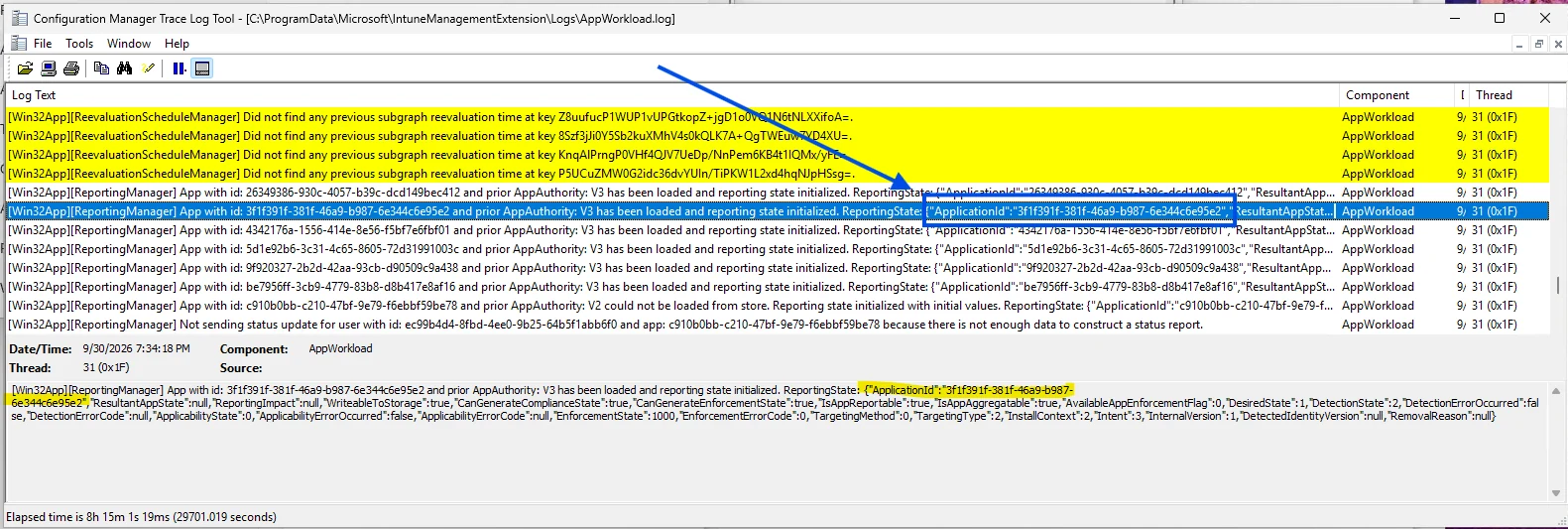
[Win32App][ReportingManager] App with id: 3f1f391f-381f-46a9-b987-6e344c6e95e2 and prior AppAuthority: V3 has been loaded and reporting state initialized. ReportingState: {"ApplicationId":"3f1f391f-381f-46a9-b987-6e344c6e95e2","ResultantAppState":null,"ReportingImpact":null,"WriteableToStorage":true,"CanGenerateComplianceState":true,"CanGenerateEnforcementState":true,"IsAppReportable":true,"IsAppAggregatable":true,"AvailableAppEnforcementFlag":0,"DesiredState":1,"DetectionState":2,"DetectionErrorOccurred":false,"DetectionErrorCode":null,"ApplicabilityState":0,"ApplicabilityErrorOccurred":false,"ApplicabilityErrorCode":null,"EnforcementState":1000,"EnforcementErrorCode":0,"TargetingMethod":0,"TargetingType":2,"InstallContext":2,"Intent":3,"InternalVersion":1,"DetectedIdentityVersion":null,"RemovalReason":null}The subgraph policy is being processed:
[Win32App][V3Processor] Processing subgraph with app ids: 3f1f391f-381f-46a9-b987-6e344c6e95e2Evaluation of the Global Retry Schedule (GRS) kicks off:
[Win32App][GRSManager] App with id: 3f1f391f-381f-46a9-b987-6e344c6e95e2 has no recorded GRS value which will be treated as expired.
Hash = dQR+wSmsyUyKzOHgo5wUNc871B07PvSMr0RmsGSmCVU=

[Win32App][V3Processor] Reevaluation interval is expired for subgraph 3f1f391f-381f-46a9-b987-6e344c6e95e2. Processing subgraph.
Detection Handler kicks off:
[Win32App][DetectionActionHandler] Detection running for policy with id: 3f1f391f-381f-46a9-b987-6e344c6e95e2.
[Win32App][DetectionActionHandler] Detection for policy with id: 3f1f391f-381f-46a9-b987-6e344c6e95e2 resulted in action status: Success and detection state: NotDetected.
Applicability check is running to check if the state of the app is in the desired state (installed), which it is not:
[Win32App][ApplicabilityActionHandler] Applicability check for policy with id: 3f1f391f-381f-46a9-b987-6e344c6e95e2 resulted in action status: Success and applicability state: Applicable.
[Win32App][DownloadActionHandler] Handler invoked for policy with id: 3f1f391f-381f-46a9-b987-6e344c6e95e2 and version: 1
[Win32App][ReportingManager] Desired state for app with id: 3f1f391f-381f-46a9-b987-6e344c6e95e2 has been updated. Report delta: {"DesiredState":{"OldValue":"NotPresent","NewValue":"Present"},"EnforcementState":{"OldValue":"Success","NewValue":null},"EnforcementErrorCode":{"OldValue":0,"NewValue":null}}
The application state is reported back to Company Portal:
[Win32App][ReportingManager] Sending status to company portal based on report: {"ApplicationId":"3f1f391f-381f-46a9-b987-6e344c6e95e2","ResultantAppState":null,"ReportingImpact":null,"WriteableToStorage":true,"CanGenerateComplianceState":true,"CanGenerateEnforcementState":false,"IsAppReportable":true,"IsAppAggregatable":true,"AvailableAppEnforcementFlag":0,"DesiredState":2,"DetectionState":2,"DetectionErrorOccurred":false,"DetectionErrorCode":null,"ApplicabilityState":0,"ApplicabilityErrorOccurred":false,"ApplicabilityErrorCode":null,"EnforcementState":null,"EnforcementErrorCode":null,"TargetingMethod":0,"TargetingType":2,"InstallContext":2,"Intent":3,Application starts downloading:
[Win32App] Downloading app on session 2. App: 3f1f391f-381f-46a9-b987-6e344c6e95e2	AppWorkload	9/30/2026 7:34:23 PM	31 (0x001F)
Get content info from Intune	AppWorkload	9/30/2026 7:34:23 PM	31 (0x001F)
[Win32App] Load global Win32App settings	AppWorkload	9/30/2026 7:34:23 PM	31 (0x001F)
[Win32App] Content cache miss for app (id = 3f1f391f-381f-46a9-b987-6e344c6e95e2, name = Scribe Desktop Capture), start downloading...	AppWorkload	9/30/2026 7:34:24 PM	31 (0x001F)
[Win32App DO] start creating a new download job, FileId = 501FCB7D-A970-4E34-A753-4B48FE5D8BEF_bd2af36d-d880-42fc-9190-df28bdd4b78d_00b17df1-431b-4d23-b113-26e61de87aba_d0537ca4-8bfe-41ba-9093-b76c3fd146ec-intunewin-bin_3f1f391f-381f-46a9-b987-6e344c6e95e2_1
[Win32App DO] destination path = C:\Program Files (x86)\Microsoft Intune Management Extension\Content\Incoming\3f1f391f-381f-46a9-b987-6e344c6e95e2_1.bin	AppWorkload	9/30/2026 7:34:24 PM	31 (0x001F)
[Win32App DO] DO Job Id is c33f5f32-566e-46e4-8350-380770af9871	AppWorkload	9/30/2026 7:34:24 PM	31 (0x001F)
[Win32App DO] DO Job default priority is BG_JOB_PRIORITY_NORMAL	AppWorkload	9/30/2026 7:34:24 PM	31 (0x001F)
[Win32App DO] DO Job set priority is BG_JOB_PRIORITY_NORMAL	AppWorkload	9/30/2026 7:34:24 PM	31 (0x001F)
[StatusService] Downloading app (id = 3f1f391f-381f-46a9-b987-6e344c6e95e2, name Scribe Desktop Capture) via DO, bytes 0/0 for user ec99b4d4-8fbd-4ee0-9b25-64b5f1abb6f0	AppWorkload	9/30/2026 7:34:24 PM	31 (0x001F)
Application detection kicks off again:
[Win32App][ExecutionActionHandler] Handler invoked with execution type: Install for policy with id: 3f1f391f-381f-46a9-b987-6e344c6e95e2 and version: 1. AppWorkload 9/30/2026 7:38:27 PM 31 (0x001F)GRS is reset for the app:
[Win32App][GRSManager] Reset GRS value for app: 3f1f391f-381f-46a9-b987-6e344c6e95e2 and user: ec99b4d4-8fbd-4ee0-9b25-64b5f1abb6f0.	AppWorkload	9/30/2026 7:38:27 PM	31 (0x001F)
[Win32App][GRSManager] Saving GRS values to storage.	AppWorkload	9/30/2026 7:38:27 PM	31 (0x001F)
[Win32App][GRSManager] Saved GRS value: 10/01/2026 02:38:27 to path: ec99b4d4-8fbd-4ee0-9b25-64b5f1abb6f0\GRS\dQR+wSmsyUyKzOHgo5wUNc871B07PvSMr0RmsGSmCVU=\3f1f391f-381f-46a9-b987-6e344c6e95e2	AppWorkload	9/30/2026 7:38:27 PM	31 (0x001F)
App detection is running:
[Win32App][Win32AppExecutionExecutor] Using content at: C:\WINDOWS\IMECache\3f1f391f-381f-46a9-b987-6e344c6e95e2_1.	AppWorkload	9/30/2026 7:38:27 PM	31 (0x001F)
[Win32App] ExecuteWithRetry Parsing InstallEx...	AppWorkload	9/30/2026 7:38:27 PM	31 (0x001F)
[Win32App] ===Step=== Execute retry 0	AppWorkload	9/30/2026 7:38:27 PM	31 (0x001F)
[Win32App] ===Step=== InstallBehavior RegularWin32App, Intent 3, UninstallCommandLine Invoke-AppDeployToolkit.exe Uninstall	AppWorkload	9/30/2026 7:38:27 PM	31 (0x001F)
Invoke-AppDeployToolkit.exe	AppWorkload	9/30/2026 7:38:27 PM	31 (0x001F)
[Win32App] SetCurrentDirectory: C:\WINDOWS\IMECache\3f1f391f-381f-46a9-b987-6e344c6e95e2_1	AppWorkload	9/30/2026 7:38:27 PM	31 (0x001F)
[Win32App] Launch Win32AppInstaller in machine session	AppWorkload	9/30/2026 7:38:27 PM	31 (0x001F)
[Win32App] lastWin32Error 0 after CreateProcess	AppWorkload	9/30/2026 7:38:27 PM	31 (0x001F)
Application is now detected:
[Win32App][ExecutionActionHandler] Handler completed with action status: Success.	AppWorkload	9/30/2026 7:38:58 PM	31 (0x001F)
[Win32App][DetectionActionHandler] Handler invoked for 1 app detections.	AppWorkload	9/30/2026 7:38:58 PM	31 (0x001F)
[Win32App][DetectionActionHandler] Detection running for policy with id: 3f1f391f-381f-46a9-b987-6e344c6e95e2.	AppWorkload	9/30/2026 7:38:58 PM	31 (0x001F)
[Win32App][DetectionActionHandler] The last enforcement action was on policy with id: 3f1f391f-381f-46a9-b987-6e344c6e95e2.	AppWorkload	9/30/2026 7:38:58 PM	31 (0x001F)
[Win32App][DetectionActionHandler] Policy with id: 3f1f391f-381f-46a9-b987-6e344c6e95e2 is expected to have enforcement state: Detected.	AppWorkload	9/30/2026 7:38:58 PM	31 (0x001F)
I wanted to keep the majority of the log intact (removing parts) so that you can see the majority of the information that you can find in the AppWorkload.log tracking the installation of the application.
Microsoft Graph
Now that I’ve shown you how to view the application in the Intune console, you can also view the application in Microsoft Graph. It’s not required that you use the Graph to successfully deploy applications, but if you’re wanting to get more comfortable with automating application deployments, this is a great way to get started.
When I’m working on automating in Intune, I use the Graph Explorer to determine what API calls to the Graph I need to make.
Again, I’m going to take that app GUID from earlier and use it to view information about the application:
https://graph.microsoft.com/beta/deviceAppManagement/mobileApps/3f1f391f-381f-46a9-b987-6e344c6e95e2Then hit Run Query to get the JSON representation of the application:
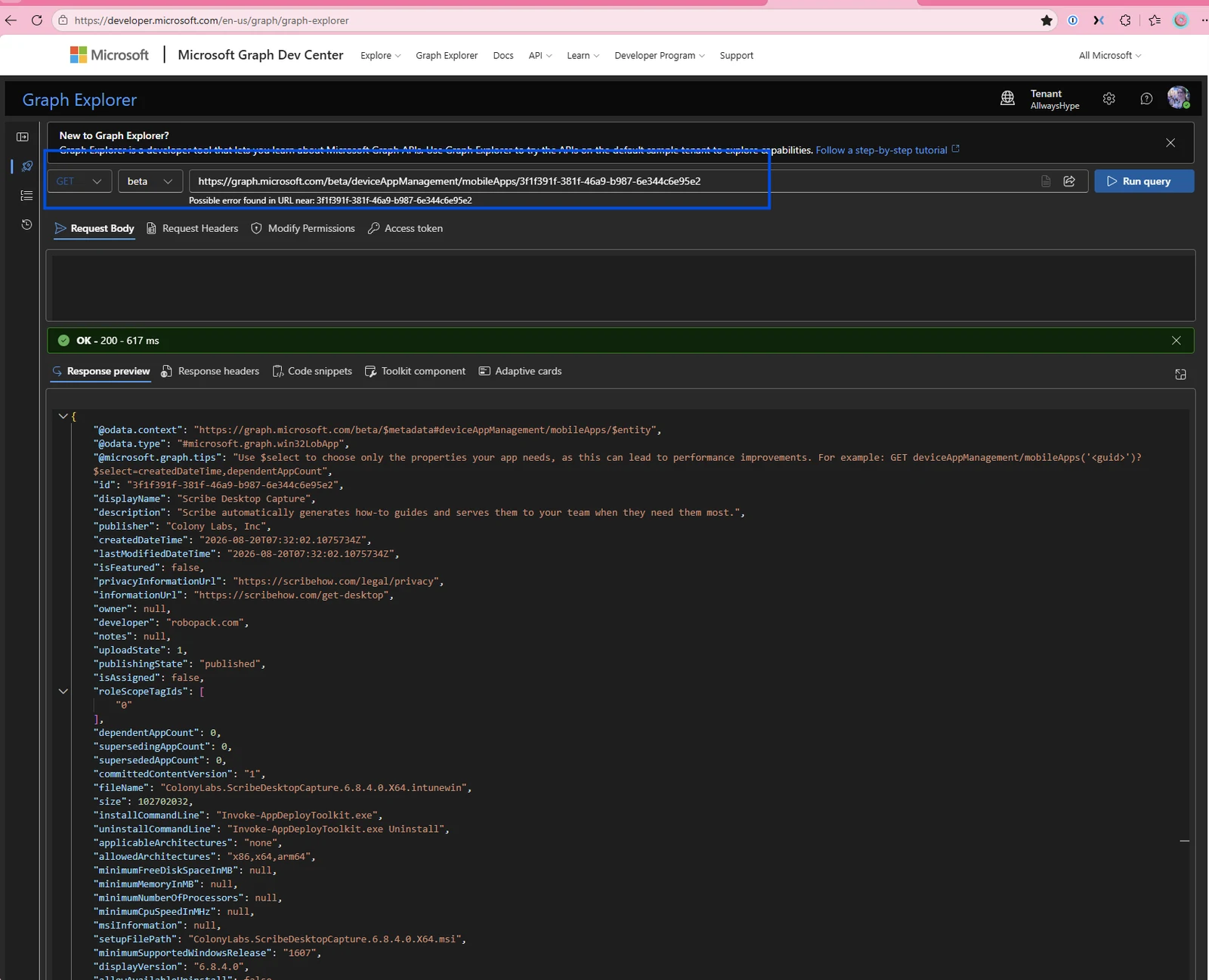
Now, to see the assignment status of the application, we’ll just add onto our API call:
https://graph.microsoft.com/beta/deviceAppManagement/mobileApps/3f1f391f-381f-46a9-b987-6e344c6e95e2/assignments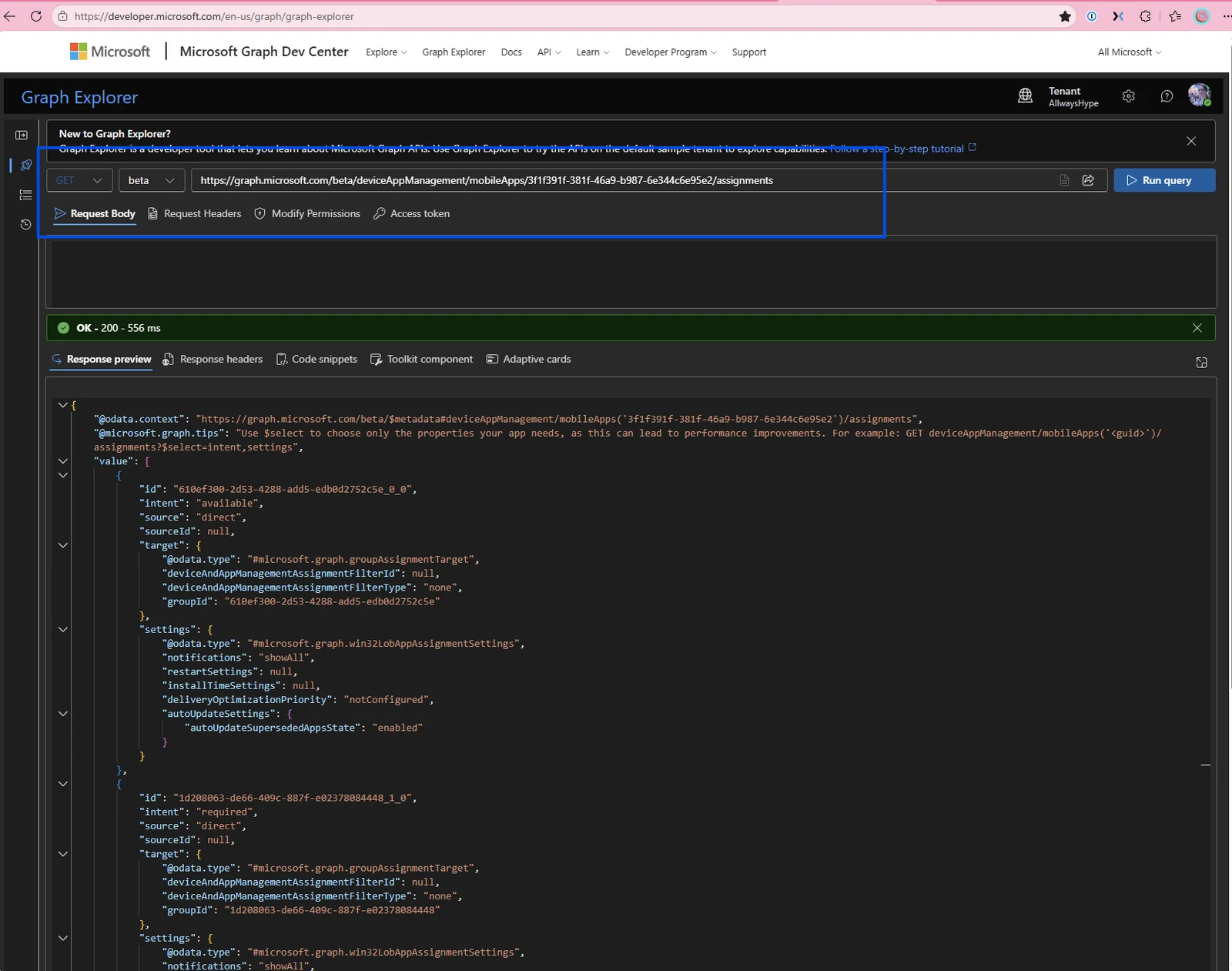
To get the status of the application install, we can either download the report using the Graph explorer:
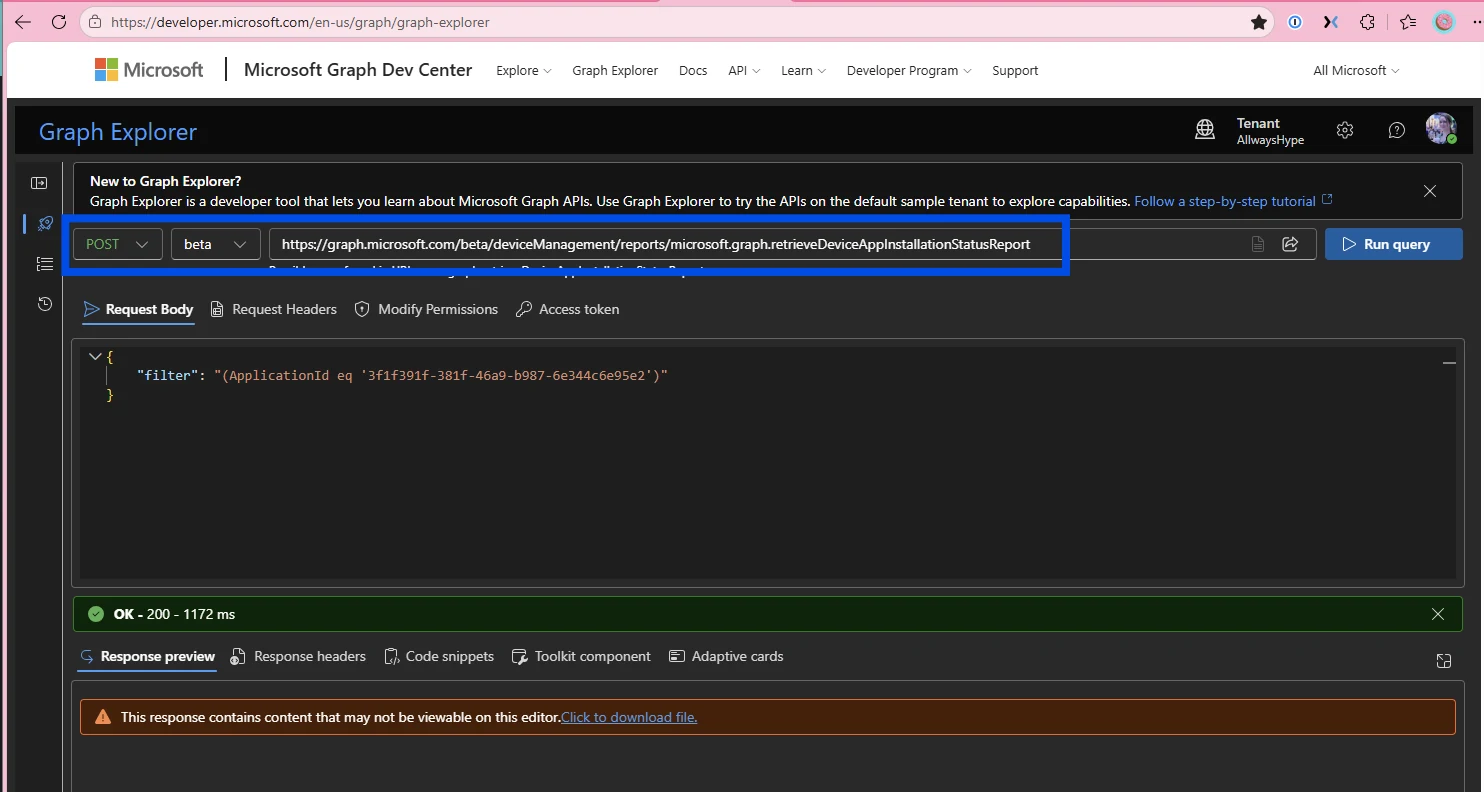
Or we can use PowerShell to download the file:
# Import the PowerShell module to authenticate to Graph
Import-Module -Name Microsoft.Graph.Authentication

# Connect to Graph with your user account
Connect-MgGraph -TenantId 'yourtenant'

# App Details
$Path = 'C:\Temp'
$AppName = 'Scribe Desktop Capture'
$AppId = 'ScribeDesktopCapture'
$AppPath = "$Path\$AppId"

# Create File Directory
$AppPath = "$Path\$AppId"
New-Item -Path $AppPath -ItemType Directory -Force

$ReportPath = Join-Path $AppPath "IntuneAppInstall-$AppId.json"

$params = @{
    'top'     = 50
    'skip'    = 0
    'select'  = @(
        'AppInstallState'
        'AppInstallStateDetails'
        'ApplicationId'
        'AppVersion'
        'DeviceId'
        'DeviceName'
        'ErrorCode'
        'InstallState'
        'InstallStateDetail'
        'Platform'
        'UserName'
        'UserId'
        'UserPrincipalName'
    )
    'orderBy' = @()
    'search'  = ''
    'filter'  = "(ApplicationId eq '3f1f391f-381f-46a9-b987-6e344c6e95e2')"
}

# Graph call to download the report
Invoke-MgGraphRequest -Method POST -Uri 'https://graph.microsoft.com/beta/deviceManagement/reports/retrieveDeviceAppInstallationStatusReport' -Body ($params | ConvertTo-Json -Depth 10) -ContentType 'application/json' -OutputFilePath $reportPath
The file contents will look like this:
{"SessionId":"c5159a35-962d-48c4-8ee6-fe9652191cb9","TotalRowCount":2,"Schema":[{"Column":"AppInstallState","PropertyType":"String"},{"Column":"AppInstallState_loc","PropertyType":"String"},{"Column":"AppInstallStateDetails","PropertyType":"String"},{"Column":"AppInstallStateDetails_loc","PropertyType":"String"},{"Column":"ApplicationId","PropertyType":"String"},{"Column":"AppVersion","PropertyType":"String"},{"Column":"DeviceId","PropertyType":"String"},{"Column":"DeviceName","PropertyType":"String"},{"Column":"ErrorCode","PropertyType":"Int32"},{"Column":"InstallState","PropertyType":"Int32"},{"Column":"InstallStateDetail","PropertyType":"Int32"},{"Column":"Platform","PropertyType":"String"},{"Column":"UserId","PropertyType":"String"},{"Column":"UserName","PropertyType":"String"},{"Column":"UserPrincipalName","PropertyType":"String"}],"Values":[["S1","Installed","E0","","3f1f391f-381f-46a9-b987-6e344c6e95e2","6.8.4.0","388b9375-766b-47db-9a0e-aeaaa6c4571d","CORP-1978390278",0,1,0,"Windows 10.0.26300.9550","00000000-0000-0000-0000-000000000000","",""],["S1","Installed","E0","","3f1f391f-381f-46a9-b987-6e344c6e95e2","6.8.4.0","388b9375-766b-47db-9a0e-aeaaa6c4571d","CORP-1978390278",0,1,0,"Windows 10.0.26300.9550","ec99b4d4-8fbd-4ee0-9b25-64b5f1abb6f0","Hailey","[email protected]"]],"LastUpdatedTime":"2026-10-01T03:42:41.7356792+00:00"}I’d encourage you to take a look at these reports and see how they can help provide inventory insights into your environment that you can use for future automation and auditing purposes.
Conclusion
My biggest suggestion is to start all application deployments locally, confirm your installation commands (and the application’s installation location) are where you’d expect, and that you’re successfully detecting (and uninstalling) the application, before uploading it to Intune.
Now that you know where the application installation logs are on the client device, as well as an overview of the deployment lifecycle, you’ve empowered yourself, as the admin, to no longer fear a deployment gone awry. Pairing that visibility with PSADT helps standardize your return codes and detection rules across your estate, avoiding those last-minute panic moments.
If you love the additional functionality and control of PSADT and Win32 apps but want to skip the hours spent manually wrapping .intunewin files and typing up detection scripts, give Robopack a look. It automates the packaging pipeline directly into Intune with pre-configured templates and return codes, so you can deploy reliably in minutes.
Good luck on your deployment journey, and check out Robopack to see how much time automated packaging can save your team!



Leave a comment