

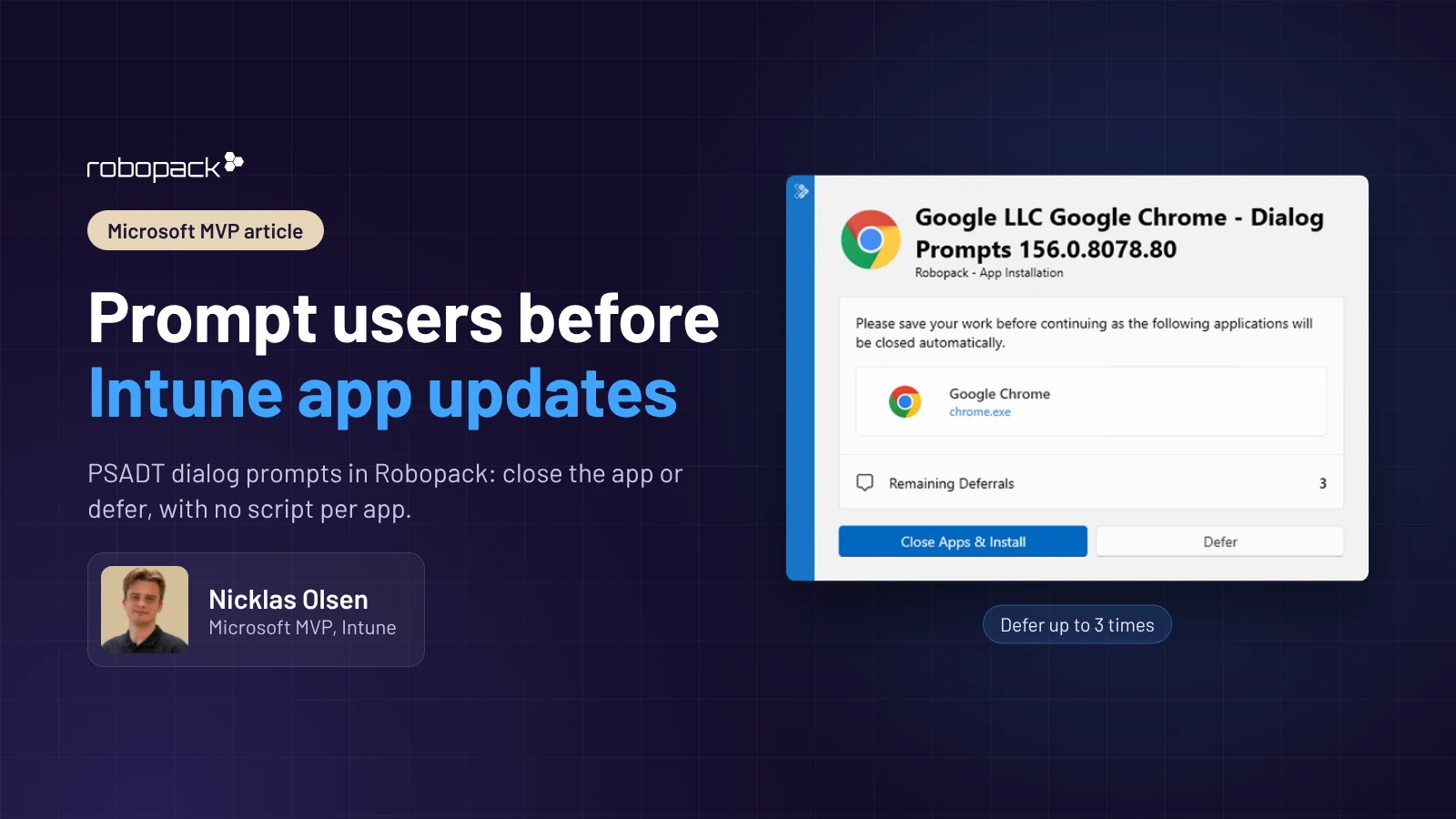
Getting an app update out through Microsoft Intune doesn’t take much, but getting it out without disrupting the people halfway through using that app takes a bit more thought. Win32 apps are installed silently in the background, and if the application happens to be open when the installation runs, one of two things usually happens: the installation fails, or the application is closed without warning and the user loses whatever they were working on.
If you want to give users a heads-up and a say in when the update happens, the options are limited. You can either schedule deployments outside working hours and hope the devices are online and the application is closed, or you can wrap each application in PSADT and script the dialog prompts yourself. The first relies on a fair bit of luck, and the second means maintaining even more lines of PowerShell per application, which is too time-consuming!
Below, I’ll show you how Robopack and PSADT dialog prompts let you ask users to close an app before it updates, and let them defer the update, without writing a script for each application.
Wrapping applications in PSADT manually
PSADT (the PowerShell App Deployment Toolkit) is a framework that makes packaging applications a lot easier, even if you’re not an expert in scripting.
The user interaction is defined in the Invoke-AppDeployToolkit.ps1 script. For example, a pre-installation step that asks the user to close Google Chrome and allows three deferrals looks like this:
Show-ADTInstallationWelcome -CloseProcesses chrome -AllowDefer -DeferTimes 3This works fine for one app, but it becomes a problem when you have more than a handful, because every application that shows a dialog prompt needs its own lines of PowerShell and process names, and all of it must be tested.
PSADT dialog prompts in Robopack
Robopack wraps your applications in PSADT for you, so there’s no script to write per application. Instead, you configure the prompts in two places. The script template defines how the prompts behave and which dialog prompts are shown, while the app setting is configured per application and holds the process names that must be closed before the installation can continue.
Setting up PSADT dialog prompts
Script template
In this example, I’ll configure the prompts for Google Chrome, so users are asked to close Chrome before it is updated and can defer the update up to three times.
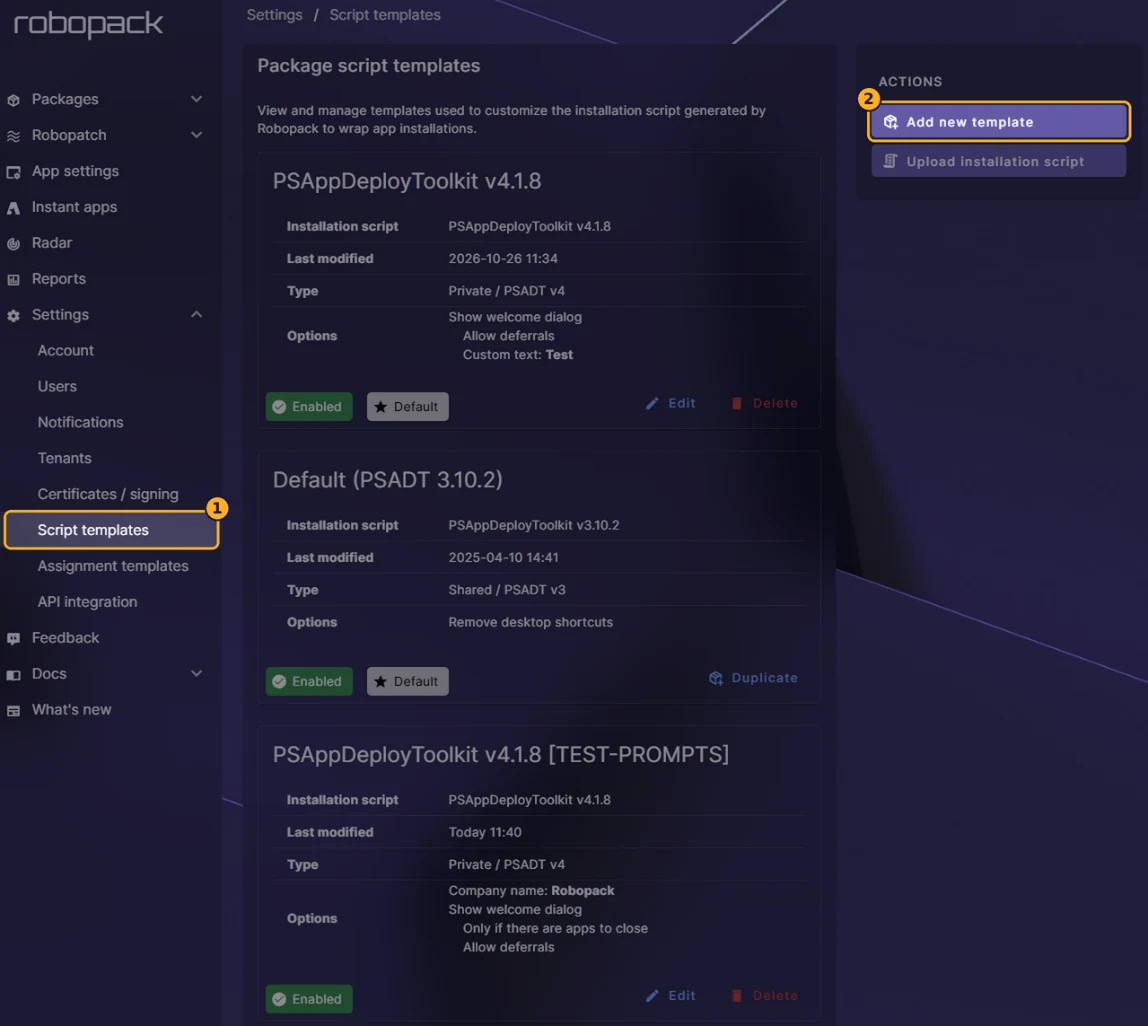
- Before I can configure the app setting, I need to create a new script template in Robopack. Go to Settings > Script templates > Add new template.
- Unfold the dialog options. This is where you choose which prompts to show: the welcome, progress and install complete dialogs. For this example, I’ll use the welcome dialog.
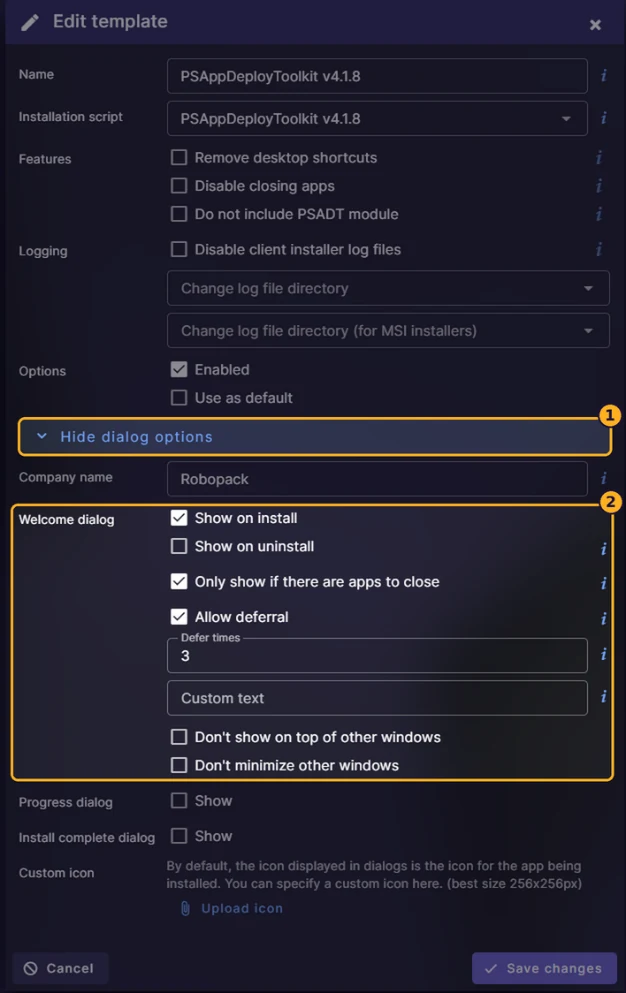
- Enable Show on install, Only show if there are apps to close and Allow deferral, and set Defer times to 3. Because the dialog only appears when there are apps to close, anyone who doesn’t have Chrome open isn’t interrupted.
- Save the changes, and the template is ready.
App setting
With the script template in place, I can now create an app setting specifically for Chrome.
- Go to App settings > Add App setting.
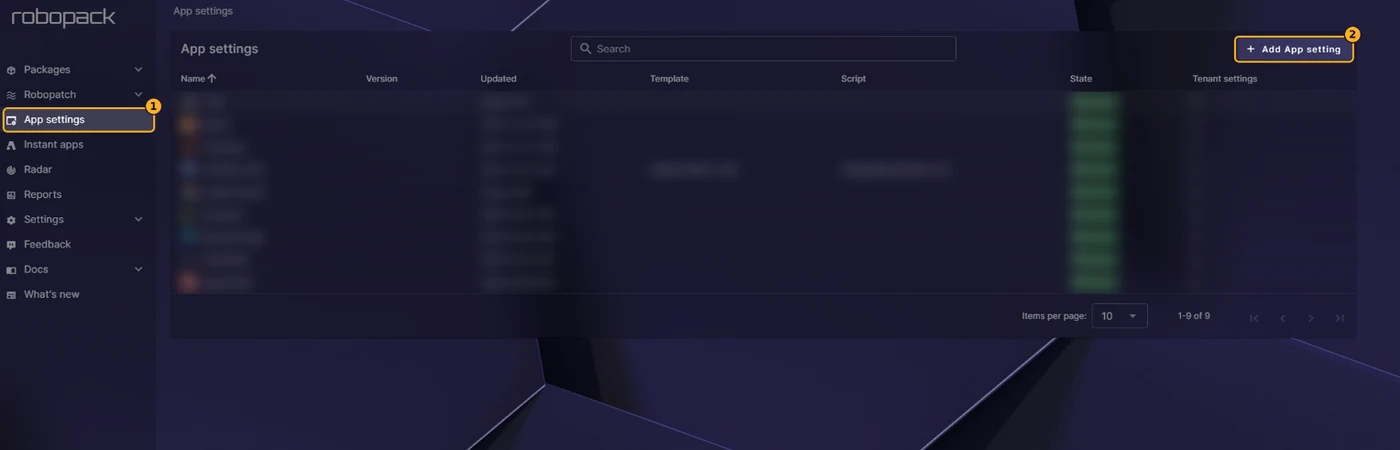
- In Target app, select Google Chrome, and add the process name under Apps to close. For Chrome, the process name is
chrome.
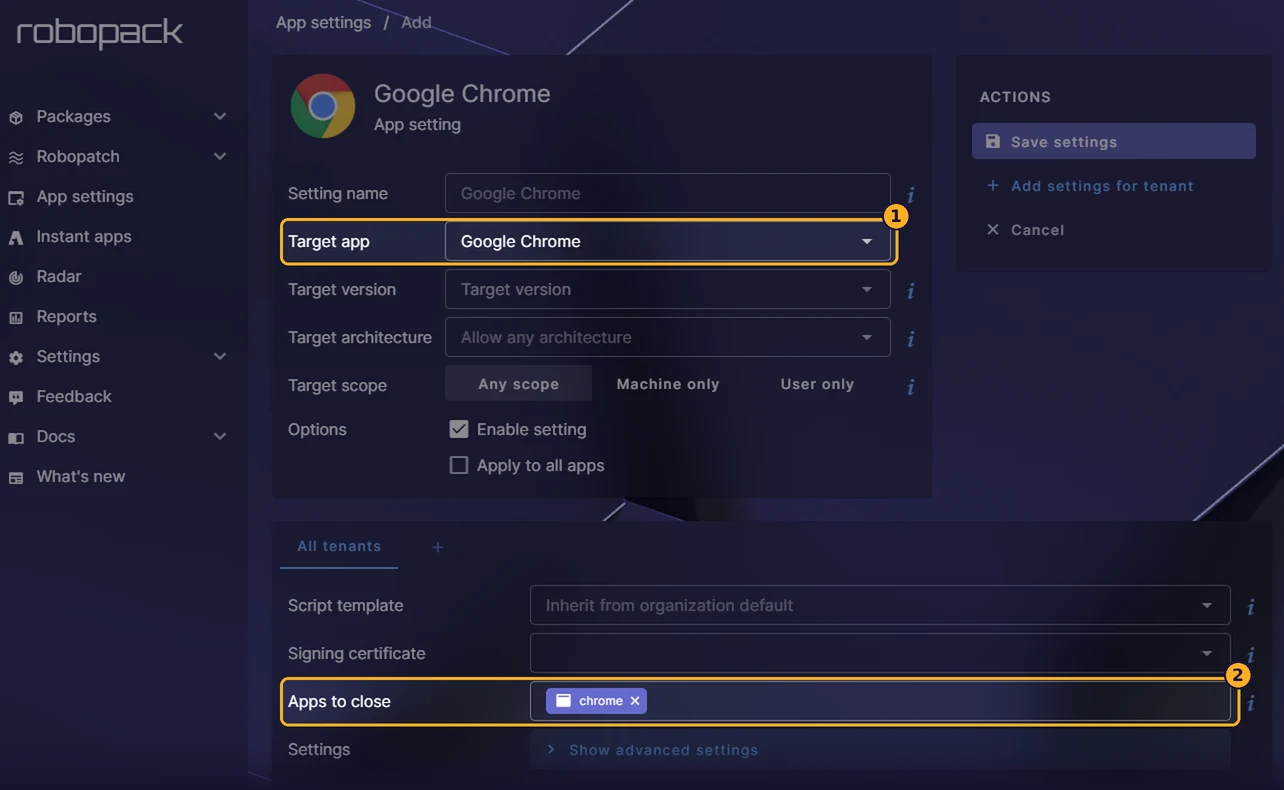
- When you’re done, click Save settings. The application is now ready to be deployed.
Before you deploy the application, you can check the script to confirm that the app setting has been added. In this example, Robopack has added the code for the welcome dialog to the pre-install section:
## Below 1 command(s) added by Robopack
If (Get-Process @('chrome') -ErrorAction Ignore) {
    Show-ADTInstallationWelcome -CloseProcesses @{ Name='chrome' } -AllowDefer -DeferTimes 3 -MinimizeWindows
}
Else {
    Write-ADTLogEntry "Target processes are not running, skipping Welcome Dialog."
}
What the user sees
When the update runs on the device and Chrome is open, the user gets the prompt below. They can close Chrome and install the update right away, or defer it. The dialog also shows how many deferrals they have left.
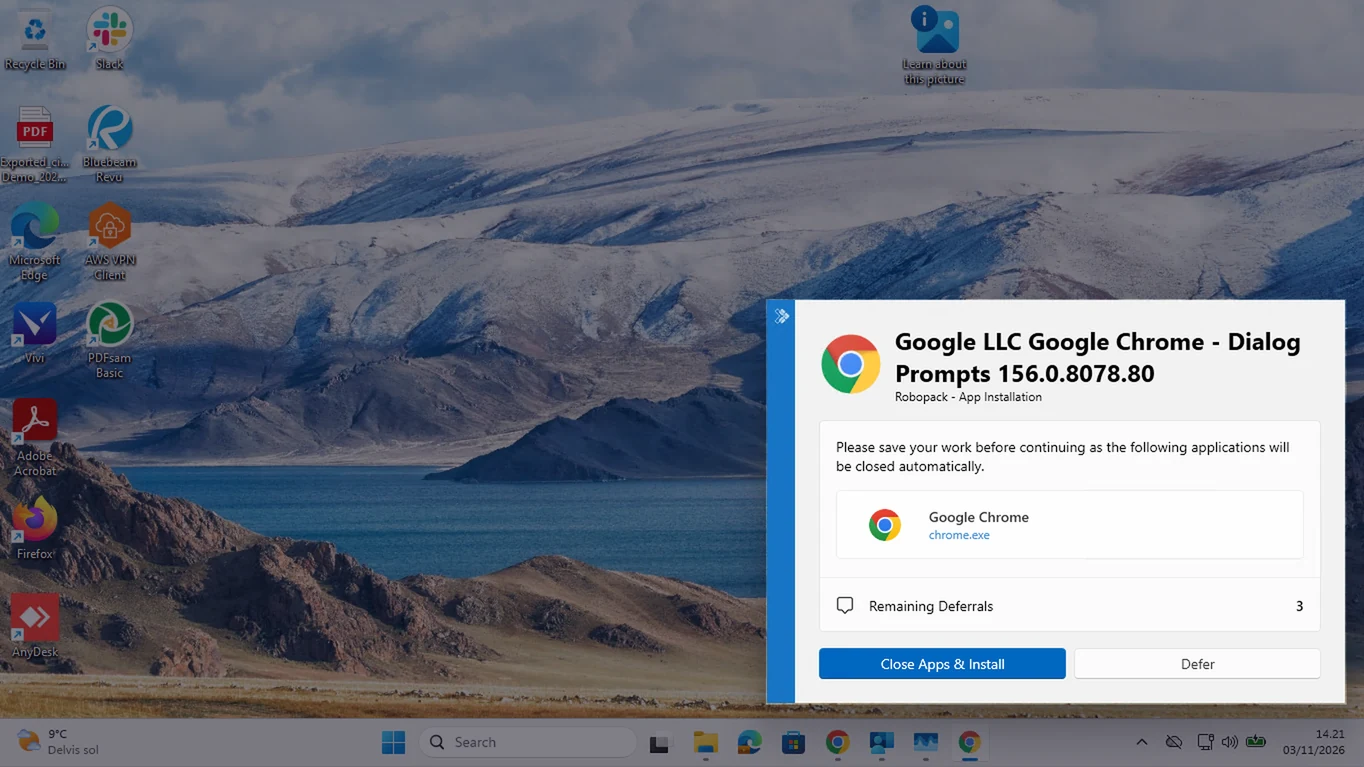
If you want to confirm it works, the log in C:\Windows\Logs\Software also shows that the process was detected and that the prompt was shown to the user.

Next steps
Once the script template is saved, adding another app is just a case of creating an app setting and entering its process names. The time you’d normally spend scripting and testing prompts for each application goes back into your week. I’ve only used the welcome dialog here, but the same template can also show the progress and install complete dialogs if you want to keep users in the loop during and after the install.
You can try it in your own tenant with a free trial, or if you’d prefer to test it away from your production environment first, try the Robopack sandbox.


Leave a comment